The guest screen at the counter
A second tablet at the till: how to install the Guest screen app, connect it with a code, turn on order display, and set up tips, reviews and idle slides.
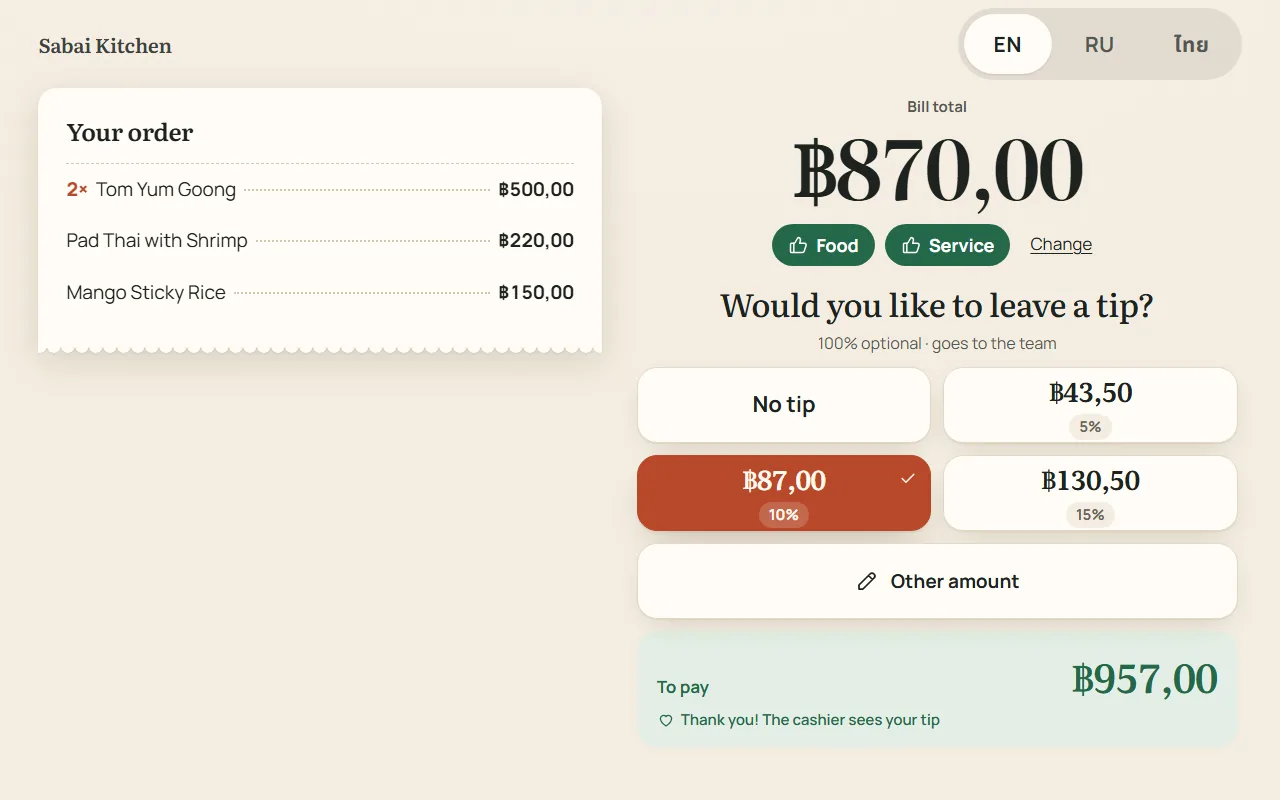
The guest screen is a separate tablet at the counter, turned towards the guest. It shows the order and the total, two questions — did they like the food and the service — a tip in one tap and a review after payment. There is no register inside it: the guest cannot get into the register from the app. What it gives the venue is on the Guest screen page.
How to set it up
- Take any Android tablet and install the “Guest screen” app on it from the Download page. Without installing, the screen opens in a browser at pos.pro-positive.com/guest — but then the guest may accidentally minimise the window, so the app is better for the counter.
- Open the app — a six-digit code appears on the screen. The code lives for 15 minutes, then changes by itself.
- Enter the code in the back office: the “Guest screen” section → “Code from the guest screen” → “Connect”. You can also do it on the register: “Panel → Device” → “Guest screen at the counter”.
- The screen shows a welcome with the venue’s name — it is connected.
The screen is connected to the venue, not to a single register: any register of the venue sends orders to it. Connected screens are listed in the “Guest screen” section with the status “online”; the “Disconnect” button is there too — the screen immediately shows a new code.
The tablet can stand in portrait or landscape — the screen adjusts by itself.
How it works on the register
- The order. A guest at the counter sees the order as it is being entered. For a table order the display is off by default: a guest at a table does not see the screen. If they came up to the counter, press the “Counter screen: on” button in the order. The choice is read when payment is opened.
- Payment. Open the payment screen — the guest sees the total and two questions. If they liked the service, tips appear: the venue’s percentages, “No tip” and “Other amount”.
- The guest’s tip on the register. As soon as the guest chooses, a large “Guest left a tip” window pops up on the register: the amount and how much to “Enter on the terminal”. The tip goes into the receipt’s payment in the usual way; you can correct the amount if the guest changes their mind.
- After payment the screen thanks the guest and offers a review, then returns to the welcome.
Reviews: where they go
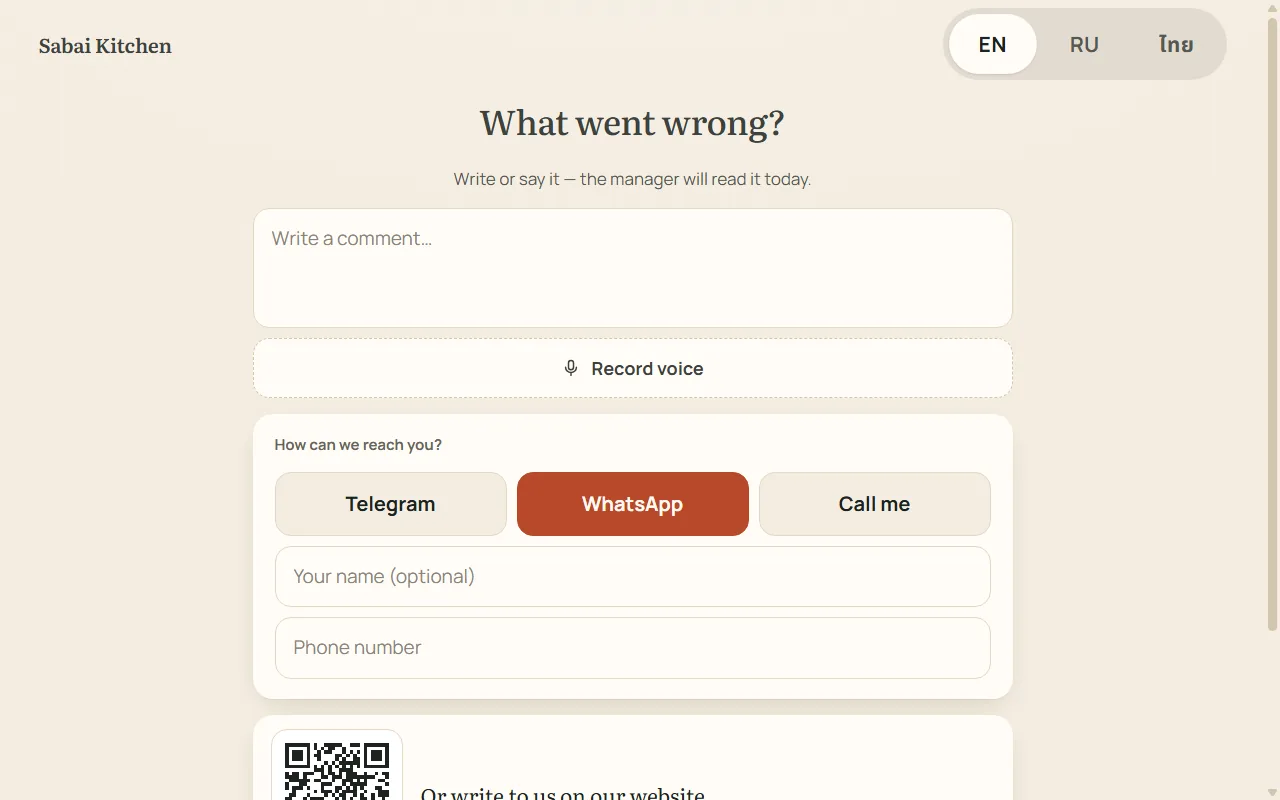
- If something was not liked, the screen asks “What went wrong?”. The guest writes or speaks, leaves a name and a way to reach them: Telegram, WhatsApp or a call. All fields are optional.
- The review arrives in Plus → Chats → the venue’s “Complaints and suggestions” and in Telegram: to the chat set in the settings, or to the venue chat. Voice is transcribed and translated into Russian.
- If everything was liked, the screen can ask the guest to rate the dishes and ask “Will you come again?”, then show a QR code for a Google Maps review and your gift for the review.
Settings in the back office
The “Guest screen” section (you need the permission to edit venue settings). On the right is “What the guest sees”: you can tap the screen, edits show right away and reach guests after “Save”.
| Group | What is set up |
|---|---|
| Order on the screen | whether to show the order live while the cashier is ringing it up |
| Tips | whether to offer tips; your own percentages (1 to 4 buttons, 1–50%) or the same as on the register; “Other amount” — no more than the bill |
| Questions for the guest | “Did you like the food?” and “Did you like the service?” before tips; stars for each dish; “Will you come again?”; review after payment |
| Language, recording and complaints | the default screen language (the guest switches it themselves); voice review; the Telegram chat for complaints and suggestions; the complaints and suggestions link on your website |
| Google Maps review | the review link and the gift: the guest reads “Show your review to the staff and get … as a gift” |
| Look and idle | background, logo, colour; promo slides — images, video or a website page (up to 20, each with its own time); your own QR codes — website, Instagram, menu |
Slides are added by dragging files in; the order is changed by dragging a card. “Show on the tablet” plays the slideshow in a tablet frame — portrait and landscape.
If something is wrong
| What you see | What to do |
|---|---|
| A code on the screen instead of the welcome | the screen is not connected — enter the code in “Guest screen” or on the register |
| The guest does not see the order | it is a table order — turn on “Counter screen” in the order; or “Order on the screen” is off |
| No tips on the screen | the guest answered “No” about the service — this is by design; or “Offer tips on the screen” is off |
| The screen is not “online” | check the tablet’s Wi-Fi and that the app is open |
| Exiting the app | six quick taps in the top left corner open the staff menu: close the program, minimise it or disconnect the screen |
The app updates itself when nobody is at the screen. The version is shown in the same staff menu.