The guest sees the bill, picks a tip and tells you how it went
A tablet at the counter faces the guest. It shows the order and the amount to pay. The guest answers two questions, picks a tip with one tap and, if they want, leaves a review. The cashier immediately sees the tip amount and adds it to the payment.
- The screen suggests the tip, not the waiter: easier for the guest to decide, no awkwardness for staff
- An unhappy guest writes to the manager, not to Google Maps
- A happy guest gets a QR code for a Google Maps review and a gift for it
What it gives the venue
Tips without awkwardness
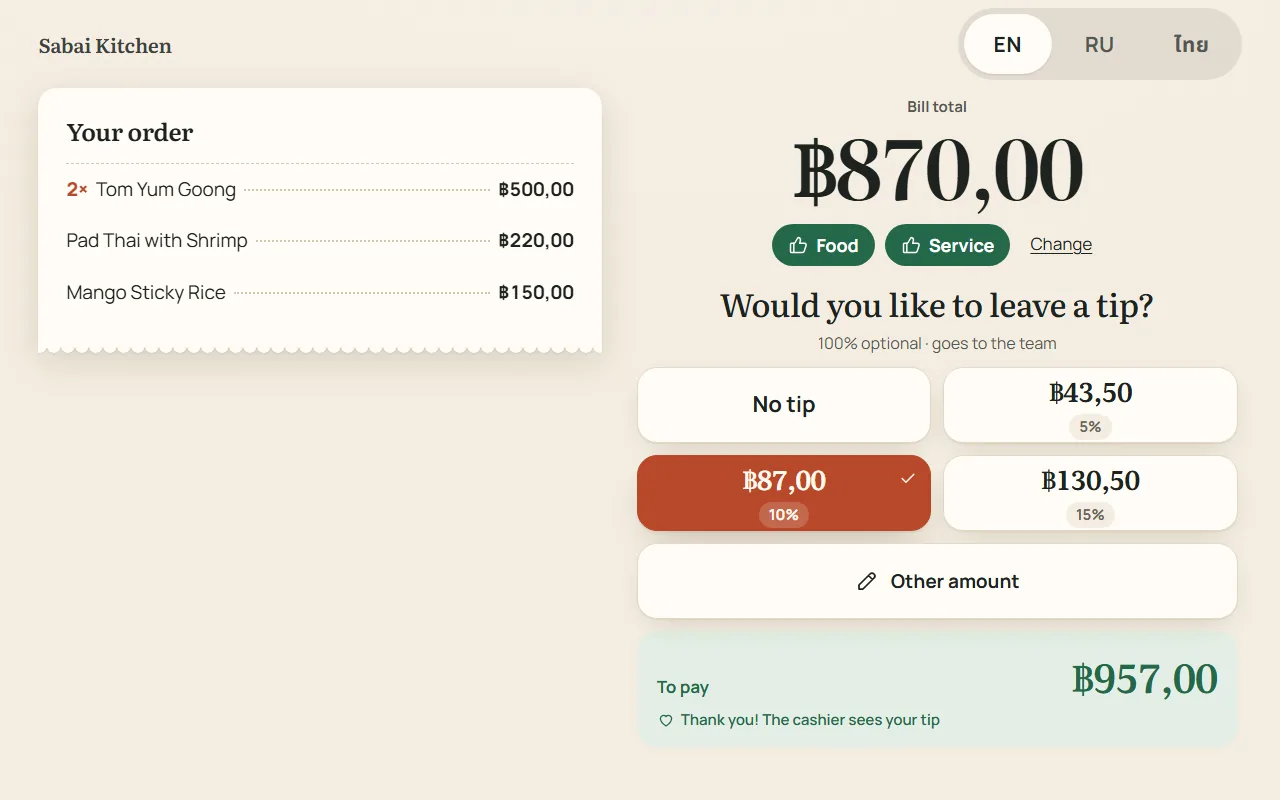
The guest sees ready-made amounts — 5, 10, 15% or the venue’s own percentages — and an “Other amount” button. The amount is calculated from the total, so the guest does not have to work it out.
A bill without disputes
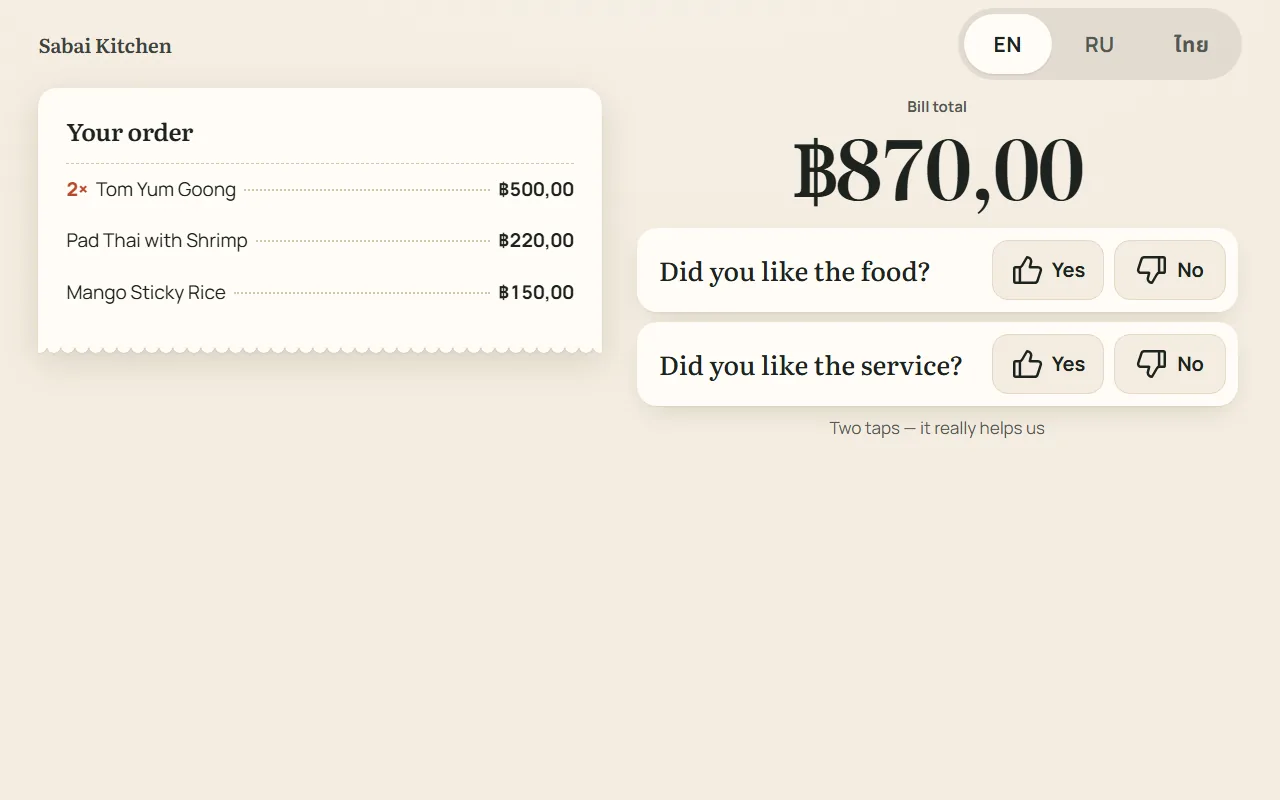
The guest sees their order line by line and the total — in English, Russian or Thai, whichever they choose. Mistakes in the order are noticed before payment, not after.
Reviews where they belong
A complaint goes to management in Plus and Telegram, with the guest’s contact. Praise goes to Google Maps: the screen shows the QR code only to guests who liked everything.
Tips are offered to guests who liked the service
Together with the bill, the screen asks: “Did you like the food?” and “Did you like the service?” — one tap per answer. If the service was liked, tips appear. If not, the screen does not offer them and asks what went wrong after payment.
- The guest is not asked for a tip after poor service
- Changed their mind and tapped “No” — the chosen tip is removed and the cashier will not add it
- Answers are remembered until the end of the visit: after payment the screen does not ask again
The guest’s tip — in large type on the cashier’s screen
As soon as the guest picks a tip, a bright window pops up on the register: the tip amount and how much to enter on the terminal together with it. Tips are recorded in the receipt payment as usual and show up in the shift totals, in the shift summary in Telegram and on the receipt card.
- The server calculates the amount from the venue’s percentages — the screen cannot pass an arbitrary number to the cashier
- The cashier can change the amount if the guest changes their mind at the counter
An unhappy guest tells you, not the internet
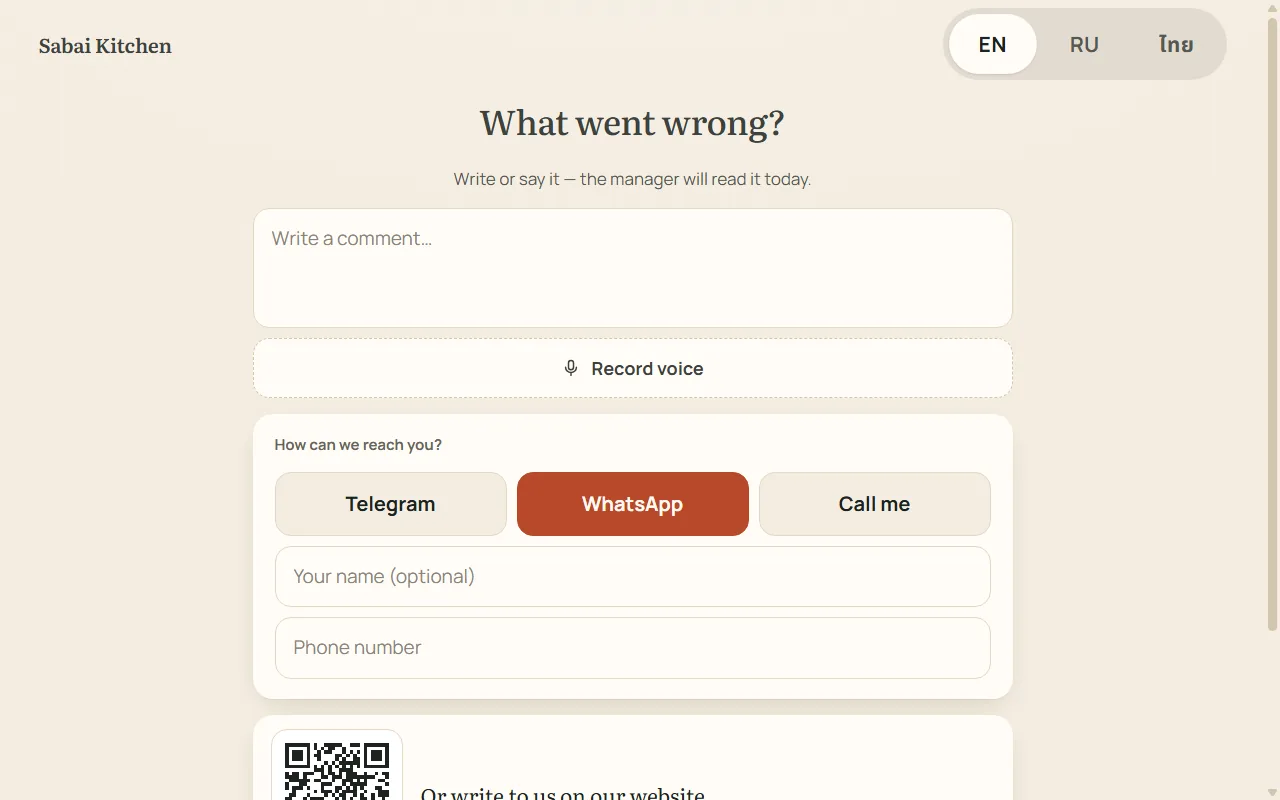
If the food or service was not liked, the screen asks “What went wrong?”. The guest types a few words or speaks, and leaves a name and a way to reach them — Telegram, WhatsApp or a call. There is also a QR code to the complaints page on your website.
- The review arrives in Plus — in the venue’s “Complaints and suggestions” chat — and in Telegram
- Voice is transcribed and translated into Russian: a Thai or English review is clear to the owner
- All fields are optional — even without words, the yes / no answers on food and service come through
The screen sends happy guests to leave a review
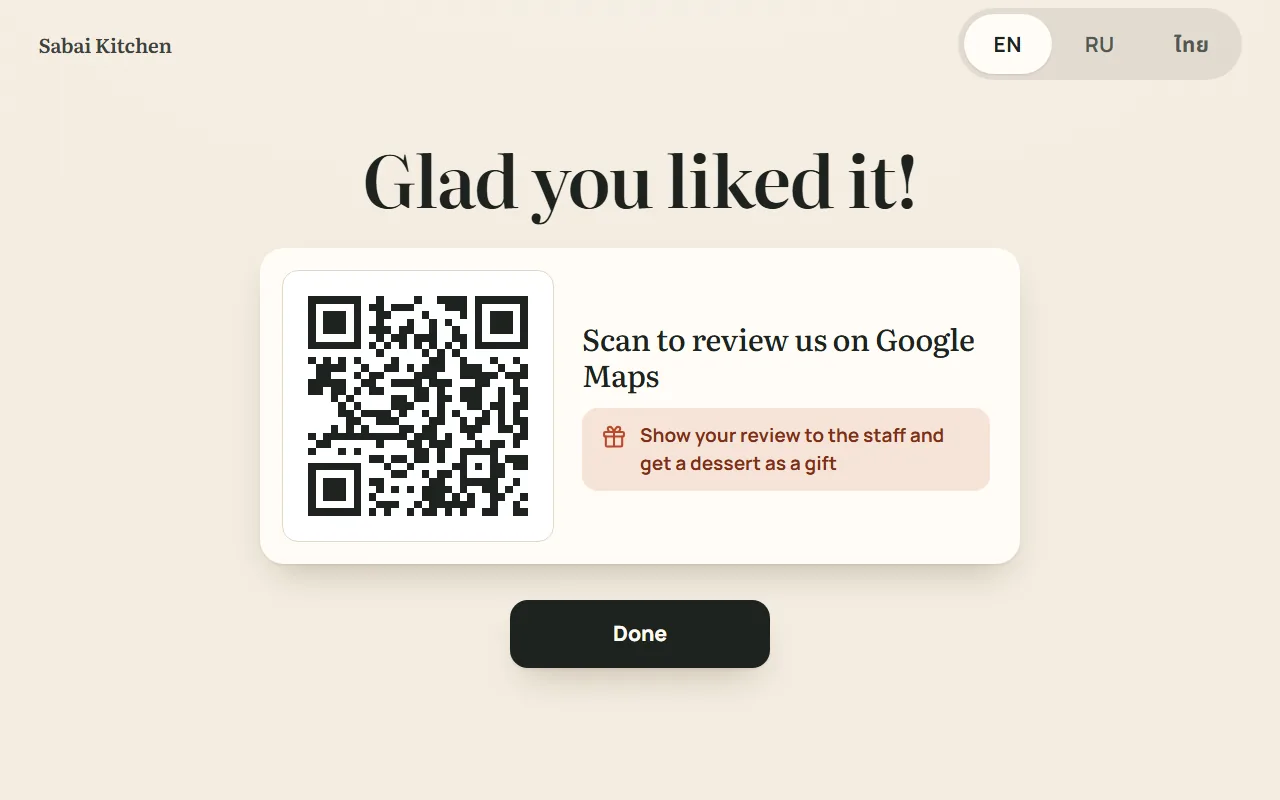
If both the food and the service were liked, the screen can ask the guest to rate the dishes and ask “Will you come again?”, then show a QR code for a Google Maps review. Next to it is your promise: for example, a dessert for a review shown to staff.
- The QR code appears only for happy guests — the rating grows thanks to those who liked it
- You set the review gift and the link
- Dish stars and “Will you come again?” can be turned off if two questions are enough
Between guests the screen works as a showcase
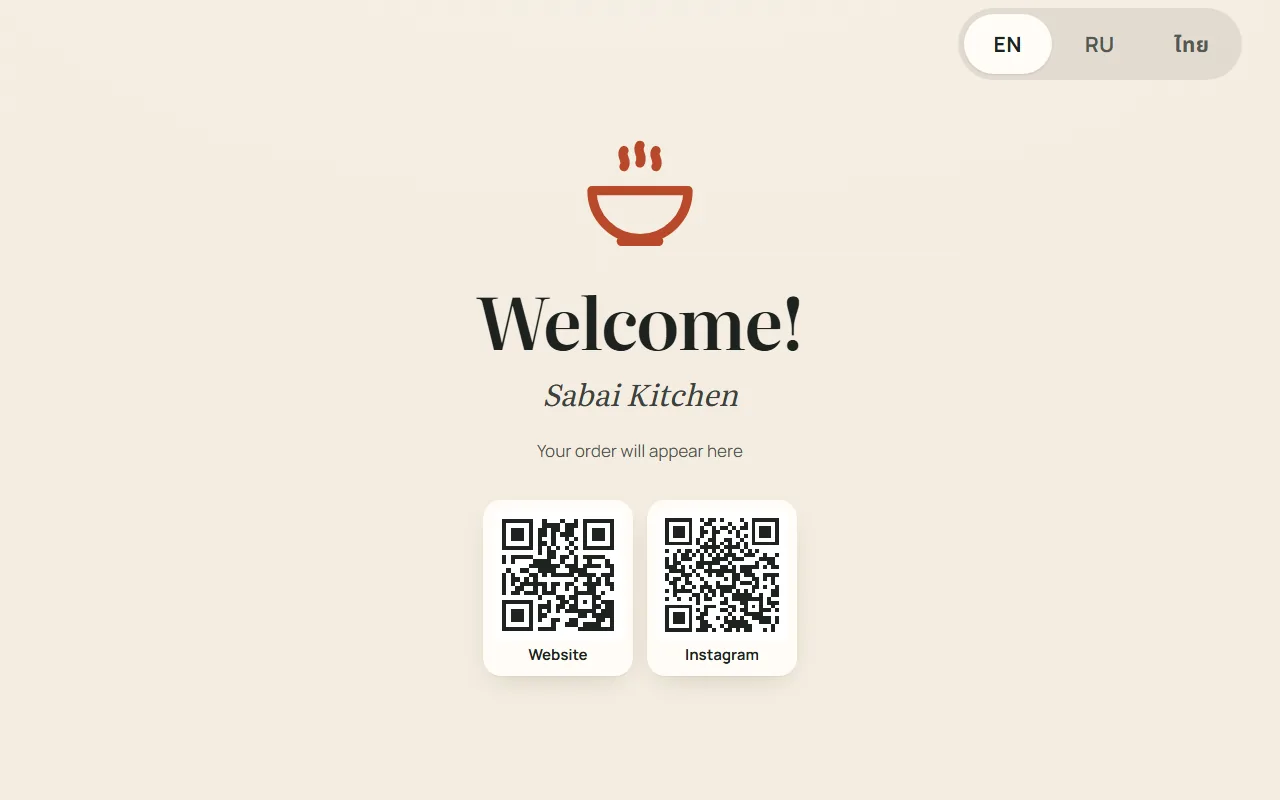
With no order, the screen shows a welcome with the venue name and your QR codes — website, Instagram, menu. You can add slides with special offers: images, videos or a website page, shown one after another.
- Your own background, logo and colour — the screen looks like your venue
- Up to 20 slides, each with its own display time; reorder by dragging
- Preview in the back office — in a tablet frame, portrait and landscape
How it works
- 1
Set up a tablet
Any Android tablet at the counter, portrait or landscape. The Guest screen app is free; without installing, the screen opens in the tablet browser.
- 2
Connect with a code
The screen shows six digits. Enter them in the back office (the Guest screen section) or on the register — the screen is linked to the venue, not to one cashier.
- 3
Ring up the order
A guest at the counter sees the order as it is entered. For guests at a table, display is off by default — the cashier turns it on with one button when the guest comes up.
- 4
Open payment
The screen shows the total, two questions and tips. The guest’s choice appears on the register right away as a large amount.
- 5
After payment
The screen thanks the guest, offers a review and returns to the welcome and special offers.
The guest can’t get into the register
No register inside
It is a separate app: no matter what is tapped, it does not lead to the register or the back office.
The tablet is locked
Android buttons are hidden, the screen stays on, “Back” does not work. Only staff can exit — six quick taps in the corner.
Updates itself
A new version arrives without staff involvement — when nobody is at the screen, not in the middle of someone’s bill.
Guest screen questions
Does the guest pay on this screen?
No. The screen shows the order, the total and tips, and payment goes as usual — by card on the terminal, in cash or by QR. The cashier enters the amount together with the tip the guest chose.
What tablet is needed?
An ordinary Android tablet will do: the Guest screen app is installed from the download page. Without installing, the screen opens in the browser of any tablet, but then the guest may accidentally minimise the window — so the app is better for the counter.
Where are the percentages, questions and look of the screen set up?
In the back office, the Guest screen section: your own tip percentages or the same as on the register, “other amount”, which questions to ask, the Google Maps link and gift, logo, background, QR codes and idle slides. Screens are connected and disconnected there too.
Can it run without tips — just the bill and reviews?
Yes. Tips are turned off with a separate checkbox; reviews and the bill display stay.
What if guests are seated at a table?
For an order with a table, display on the counter screen is off by default — a guest at the table does not see it. When they come up to the counter, the cashier turns display on with the “Counter screen” button in the order.
What languages does the screen speak?
English, Russian and Thai. The guest switches the language themselves; after their visit the screen returns to the venue’s default language.
Put a guest screen at your counter
The app is free. Connection takes six digits, setup is in the back office.