Regular orders and the day list
How to run what a client receives on a schedule — office lunches on weekdays, a cake for a café every Friday, flowers for Monday, a meal plan — and print the day list.
A regular order is what a client receives on a schedule: office lunches on weekdays, a cake for a café every Friday, flowers for Monday, coffee for an office once a week, a meal plan for a week. Tab Clients & orders CRM → Regular orders. You set once what to deliver, on which days and how many times — the list for each day builds itself.
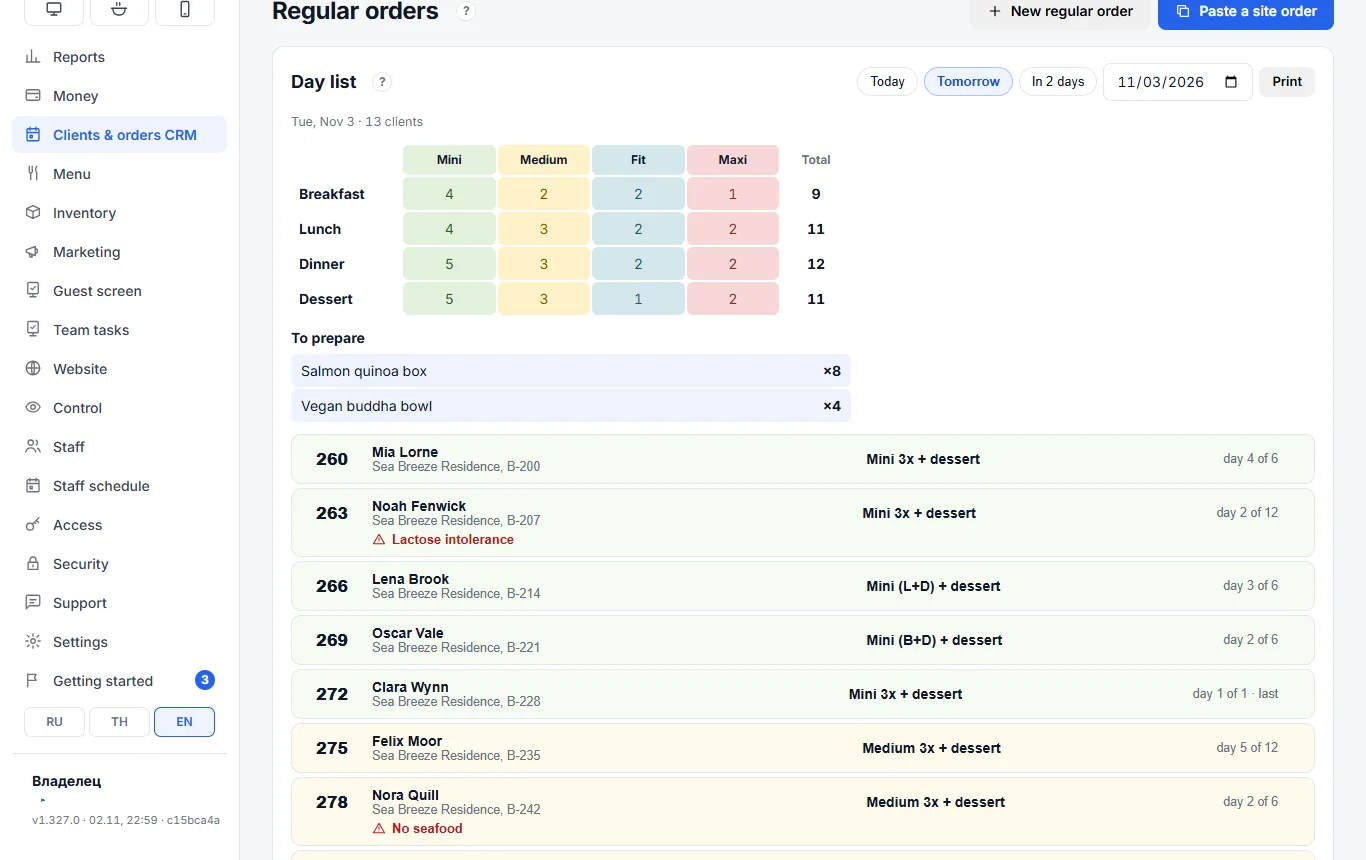
How to create a regular order
- Regular orders → New regular order.
- Client: name, phone, address. The client number is set automatically (“auto”) — handy to write on the box; you can enter your own.
- What goes in each delivery: “From the menu” — dishes and goods with quantities, for example Salmon quinoa box × 8. Not on the menu — a Custom line in your own words: “bouquet for Friday”.
- First delivery and Delivery days (the count) — from which date and how many deliveries are paid.
- The weekday chips — which weekdays to deliver. Mon–Sat by default: a week is 6 deliveries, a month is 24. For office lunches on weekdays keep Mon–Fri, for a Friday cake — Friday only.
- Price, allergies and “doesn’t eat”, comment → save.
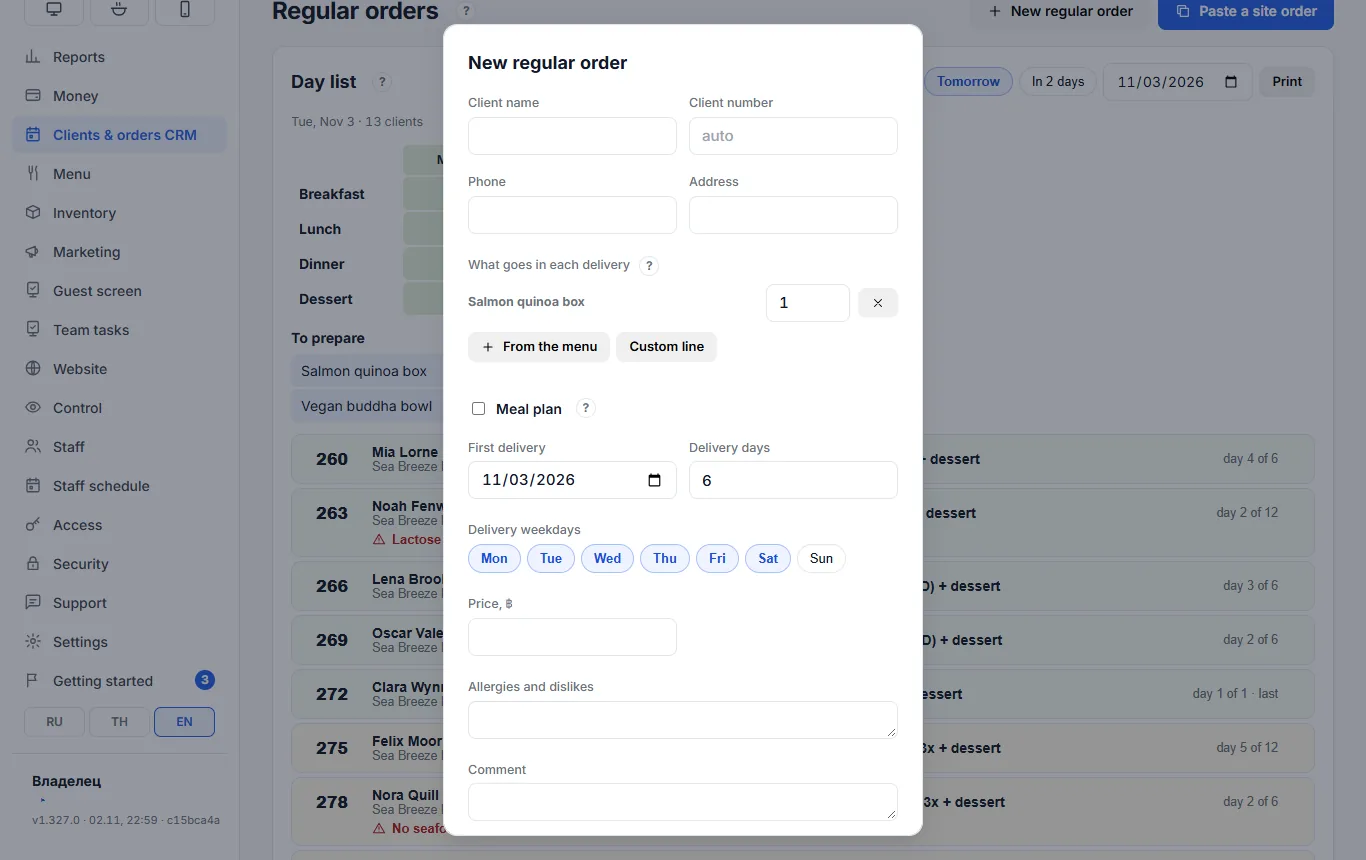
Example: the Sunrise Yoga Studio office gets 8 Salmon quinoa boxes and 4 Vegan buddha bowls every weekday, 20 deliveries in total. On the day list it shows as “day 3 of 20”.
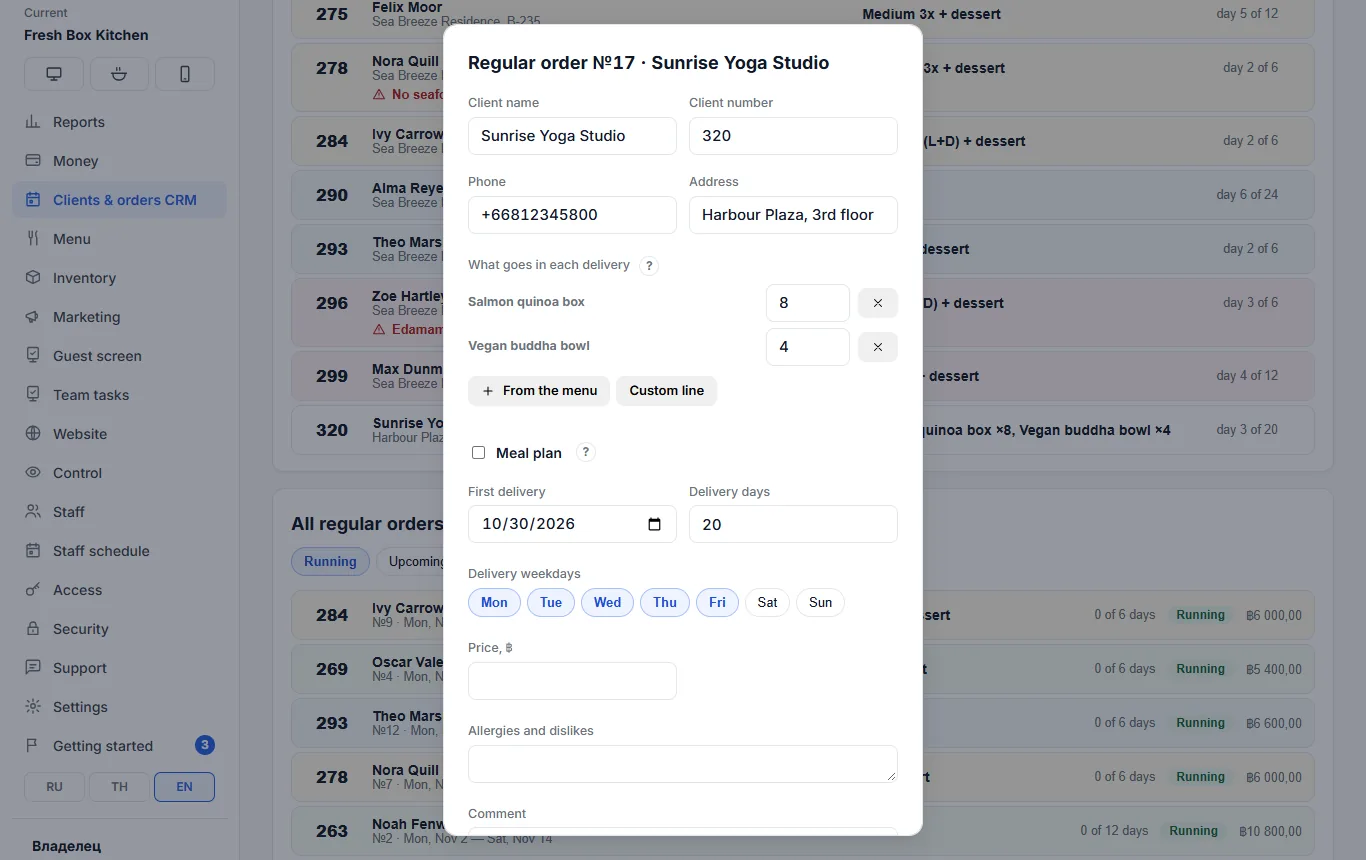
Meal plan
For meal-subscription kitchens, like healthy-food services, the order has a Meal plan block — switched on with a checkbox. Menu items are then optional.
| Field | Meaning |
|---|---|
| Tariff | Mini — 1200 kcal, Medium — 1600, Fit — 2000, Maxi — 2500; picked from the order’s calories |
| Meals | breakfast, lunch, dinner and dessert in any combination: “Mini 3x + dessert”, “Medium (L+D)” |
| Kcal per day, goal, menu type, weight | for the kitchen |
A meal plan order from the website — by pasting
The website sends the order to Telegram as text: “1200 kcal plan, 2 meals + dessert, Lunch + Dinner, Duration, Address, Phone for courier, Allergies, To pay 900 ฿”. There is no need to retype it.
- Regular orders → Paste a site order.
- Paste the whole message → Recognise. The program finds the calories, meals, period, address, phone and allergies and shows them in a green “Recognised” block.
- Type the client’s name — the website does not send it. Check the first delivery date.
- Create meal plan. Several people in one order — several plans; the button shows how many.
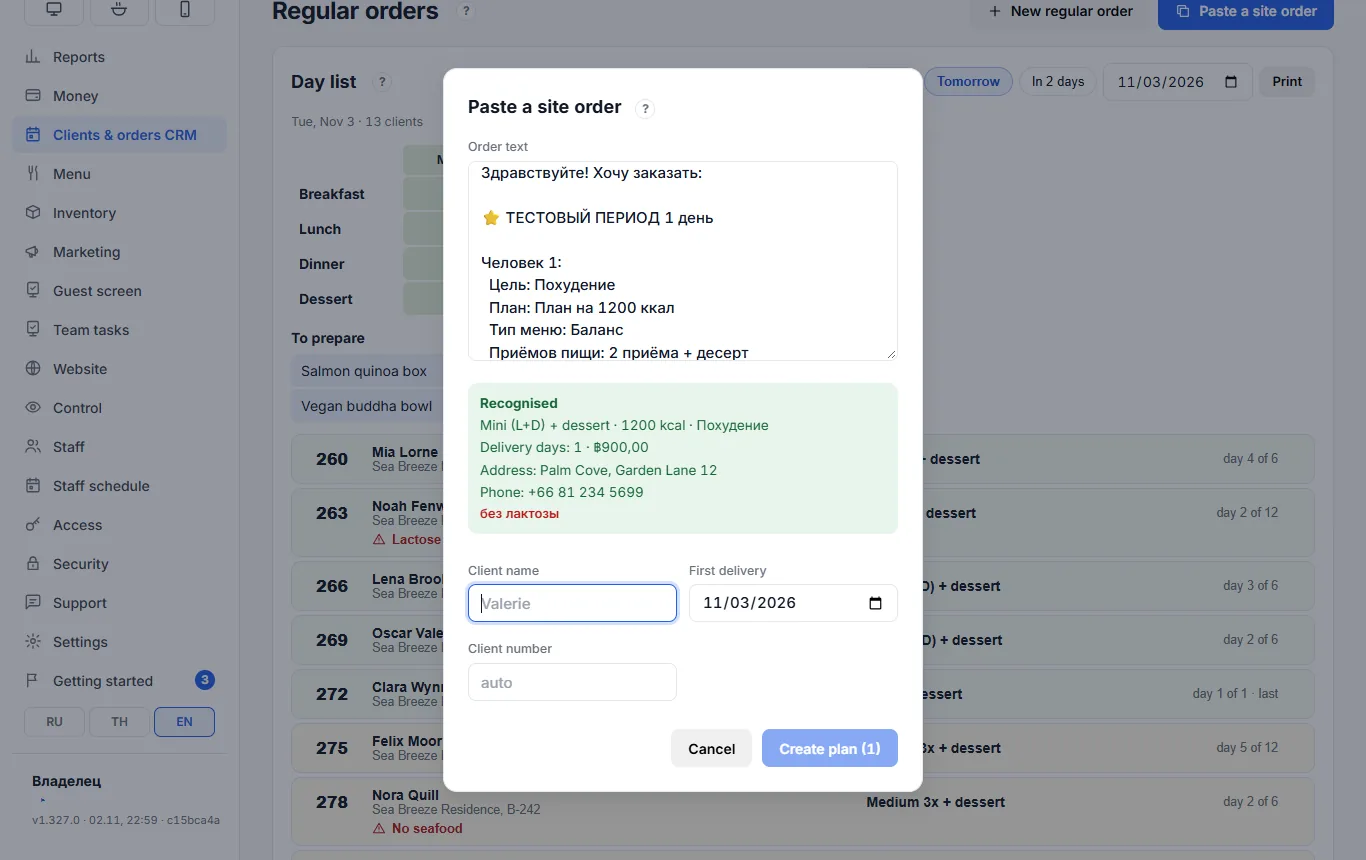
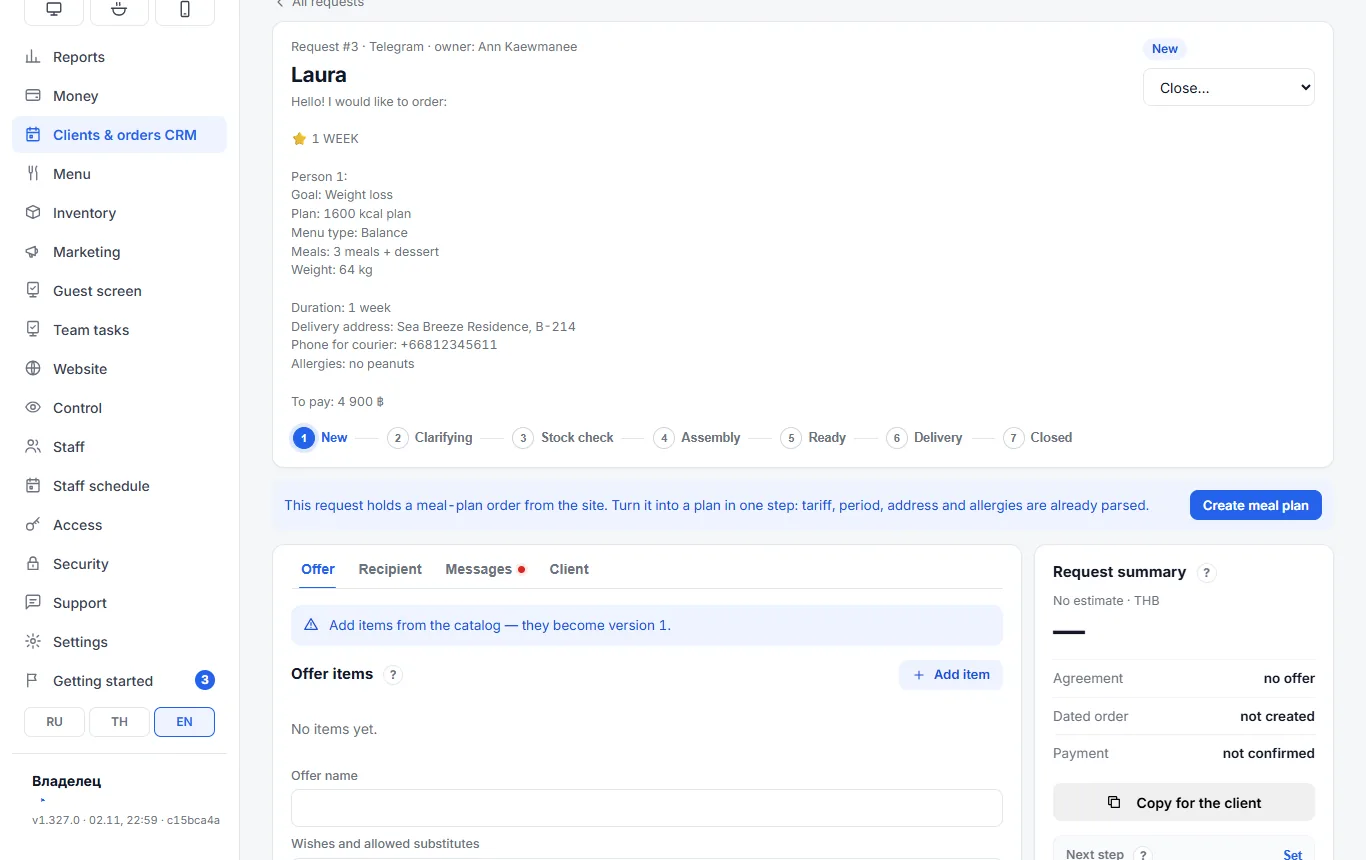
Pasting the same order again does not create a duplicate. If the website order came in as a request, the request shows a blue bar with a “Create meal plan” button — no need to parse the text again. If the text does not look like a meal plan order (no calories and no meals), the program says so; create the order by hand.
The day list
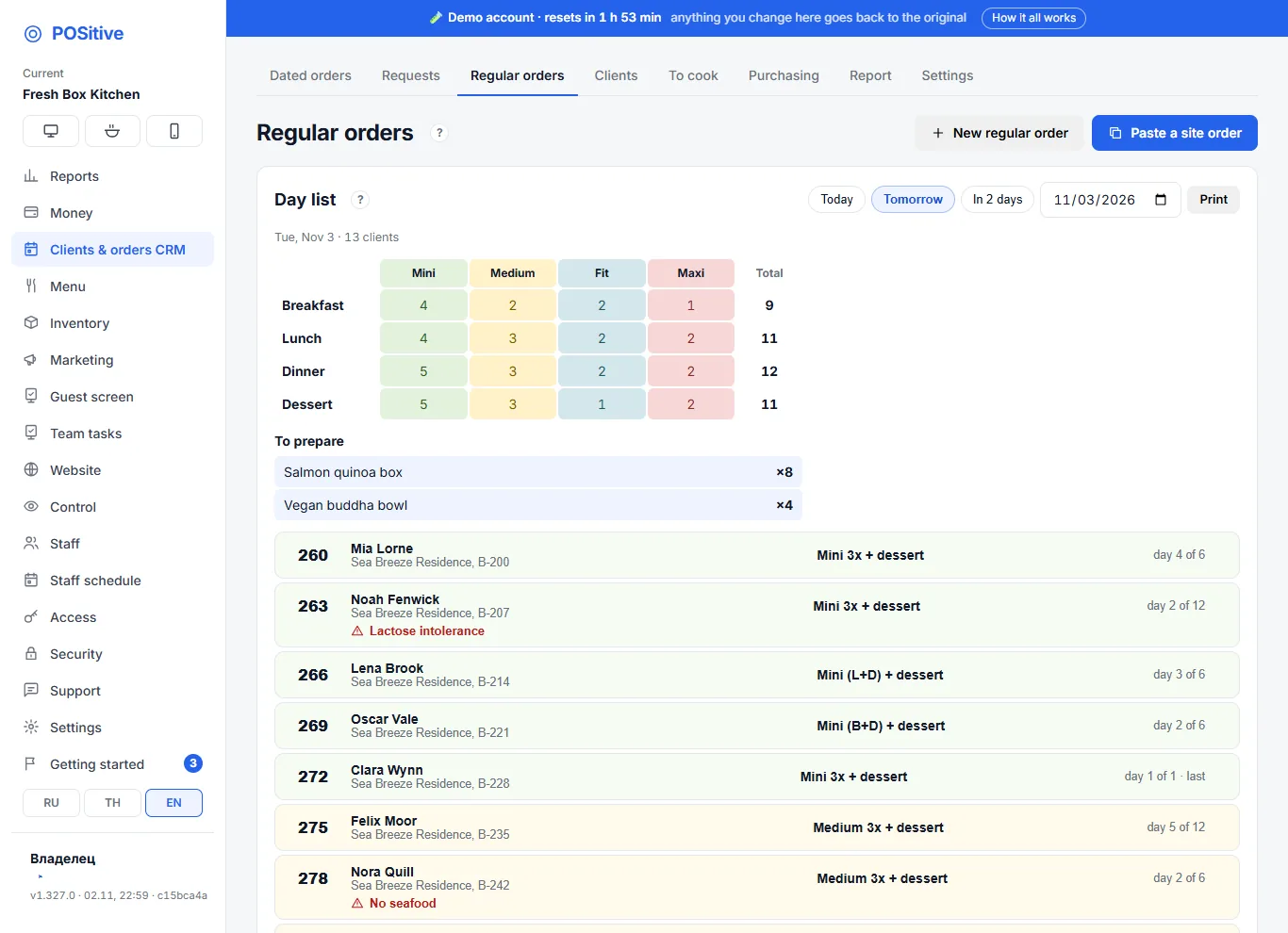
At the top of the tab is the Day list: Today, Tomorrow, Day after tomorrow or any date.
- To prepare — the items of all orders with menu items in total: Salmon quinoa box ×8, Vegan buddha bowl ×4.
- Meals table — for meal plans: meals × tariffs with totals, like the manager’s usual spreadsheet (“Mini breakfasts — 4, Medium — 2…”).
- Who gets a delivery — number, name, address, what to deliver, “day 3 of 20” (the last day is marked “last”), allergies in red.
- Print — a sheet for the kitchen and the courier.
Pause
The client is away for 3 days or the office is closed for a holiday — open the order → Pause, set “from … to …” → Pause. Those days drop off the list and the remaining deliveries move forward by themselves: the client gets every paid day. “Resume” puts it back.
Money
A regular order is paid through a dated order: create an order for the amount, take the deposit or send a payment link, and in the regular order card enter the number in “Dated order (payment)” → Link. The status and payment show up there. This way the money is never counted twice and becomes revenue when the order is handed over with a receipt.
Cancelling and statuses
At the bottom of the tab is “All regular orders” with search by name, phone or number and filters: Running, Upcoming, Finished, Cancelled. “Cancel the order” requires a reason; a cancelled order can be restored.