Clients & orders CRM — requests
What the Clients & orders CRM module includes, how to log a request from Instagram, LINE or Telegram, build an offer from the menu, get the client’s agreement and turn it into a dated order.
Clients & orders CRM is the module for everything a client orders in advance or receives on a schedule: a cake for Saturday, a group dinner, a banquet, an event set, office lunches on weekdays, a meal subscription. In the back office it is the Clients & orders CRM section with tabs: Dated orders · Requests · Regular orders · Clients · To cook · Purchasing · Report · Settings. It is a paid module, switched on in Account → Subscription. What it gives a venue is on the Clients & orders CRM page.
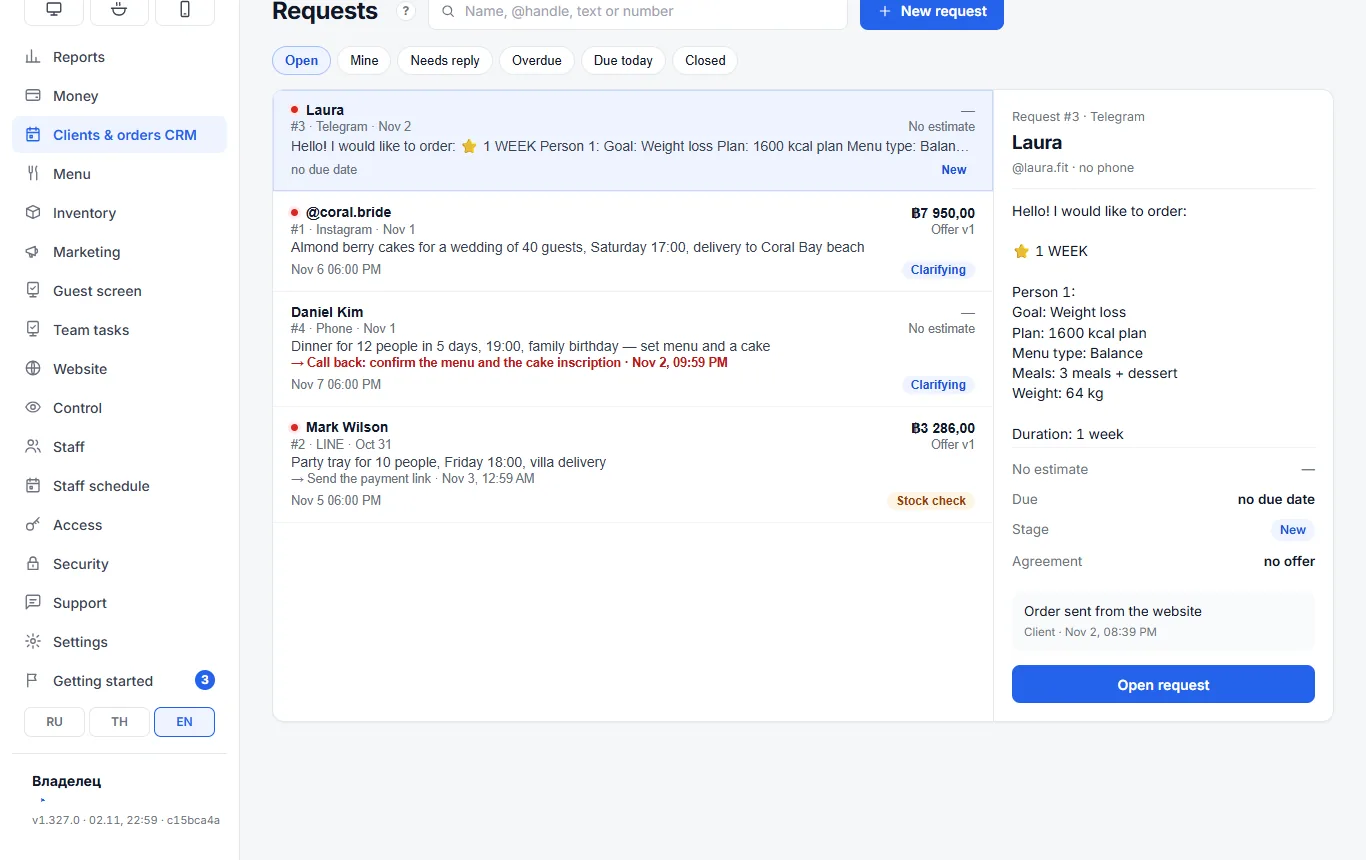
Every block that may be unclear has a “?” icon — it briefly explains what the block is and how to use it.
A request or straight to an order
- A request is an enquiry before an order: the client asked how much a cake costs, whether you can do a set for 20, whether there is room for a banquet. Items, price and date are not agreed yet.
- A dated order is when everything is settled: what, by what time, pickup or delivery, deposit. You can create one without a request — with “New order” in the Dated orders tab. See Dated orders.
The whole path: request → offer from the menu (a version) → “Client agreed” → dated order with a deposit → hand-over with a receipt at the register. Only the receipt counts as revenue.
How to log a request
- Clients & orders CRM → Requests → New request.
- Client: a name or an @handle. A phone number is optional — it can be asked before delivery. With a phone the request is linked to the guest card straight away: purchase history, notes, rating.
- Where it came from: Instagram, LINE, Telegram, WhatsApp, phone, website, walk-in.
- What they want — in your own words, the way the client put it. Deadline and estimated amount — if already known.
A request moves through the stages New → Clarifying → Stock check → Assembly → Ready → Delivery → Closed. It is closed with “Close…” and an outcome: won, lost or cancelled — with a reason (“too expensive”, “no reply”). A closed request can be reopened.
Filters: who to answer first
| Filter | What it shows |
|---|---|
| Open | all requests in progress |
| Mine | where you are the owner |
| Needs reply | the client wrote and has not had an answer |
| Overdue | the time for the “next step” has come and it is not done |
| Due today | the order is needed today |
| Closed | archive with outcome and reason |
Next step — what to do and when: “call back, confirm the cake inscription”, “send the payment link”. When the time comes, a reminder goes to the venue’s Telegram and the request appears under Overdue.
The offer and versions
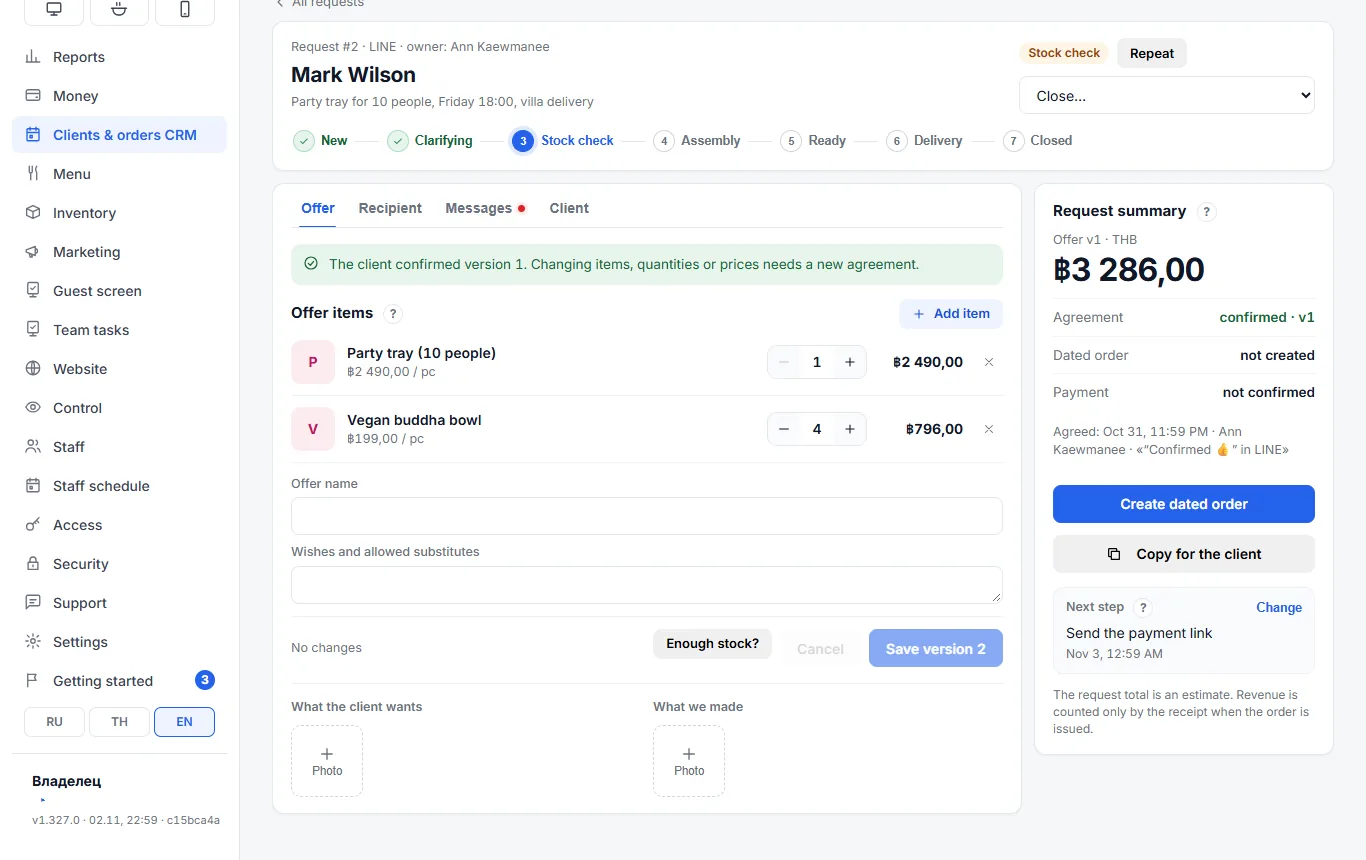
- In the Offer tab — Add item: items and prices come from the register menu. Dishes with required option choices are not listed here.
- Change quantities, add a name and “Wishes and allowed substitutes”.
- Save version — this is v1. Each following save is a new version.
- “Enough stock?” checks the recipes against other dated orders. It is a check, not a reservation: the register can still sell the last ingredients.
- The client said yes — Client agreed to v1, and note how they confirmed (“yes, let’s do it” on Instagram).
After the agreement, items, quantities or prices can only be changed with a new version — and the client must agree again. That way you always know exactly what the client said yes to.
Copy for the client gives the offer text in English, Russian or Thai: items, prices, total. Once the dated order exists, you can add a deposit link to the text: PromptPay, card, EX24 or a choice page. You paste the text into the chat yourself — the system sends nothing to the client. In the Messages tab, record what the client wrote and what you answered; notes are visible to staff only.
Recipient and photos
- Recipient — when the order goes to someone other than the customer: who, phone, address, greeting card text, “Surprise gift” (the driver does not name the sender or the price). The recipient does not go into guest cards or mailings; the address goes to the dated order’s delivery.
- Photos “What the client wants” (an example from the chat) and “What we made” (the result) — right in the request card.
From a request to a dated order
Agreed version → Create dated order: set the date and time, delivery or pickup and the address — the items and the client are carried over from the request. The Request summary on the right shows three separate statuses: has the client agreed, is there an order, is it paid.
The request total is only an estimate. The dated order takes the money, and it becomes revenue when the order is handed over with a receipt.
Repeat creates a new request with the same client, recipient and items; prices are today’s menu prices, and the date is asked again.
If something is wrong
| What you see | What to do |
|---|---|
| No “Create dated order” button | it appears after “Client agreed”; save unsaved item changes as a version first |
| “Copy for the client” has no payment link | the link appears once the dated order is created |
| A dish is missing from the catalog | it has required options — create a dated order and pick the options there |
| No guest card | add the client’s phone — the request will link to the card |