Venues in the account
How to add and close a location, switch between them, what venues in a chain share and what they keep separate.
What is shared, what is separate
| Shared | Separate |
|---|---|
| Account and sign-in | Menu, prices, recipe cards |
| Team (with different permissions at each location) | Stock and balances |
| Combined reports for the chain | Shifts, registers, receipts |
| Subscription at account level | Settings, printers, taxes |
Adding a location
The account owner adds a location themselves: Settings → Venue → “Venues” → “+ Venue”. You need a name, a time zone and a currency — locations in a chain can have different ones. The new location immediately gets a register, stock, payment methods and default print stations, and whoever created it becomes its owner.
There is no “copy the menu from another location” button yet: we transfer the new location's menu on request — write to support. How to arrange people, permissions and combined figures in a chain and a franchise — Chains and franchises.
An account created by self sign-up has one location. This protects against empty accounts: sign-up does not require email confirmation. If you have a chain, write to us — support will lift the limit.
Closing a location
A closed location disappears from the switcher, “Plus”, combined figures and chats, and signing in to it is closed. Nothing is deleted: receipts, purchases, money and the log stay, and the location can be brought back.
You cannot close:
- the location you are currently working in — switch to another one;
- the last active location of the account;
- a location with an open shift — first close the shift with a Z-report.
To confirm, type the location's name — so it cannot be closed by an accidental tap.
Switching
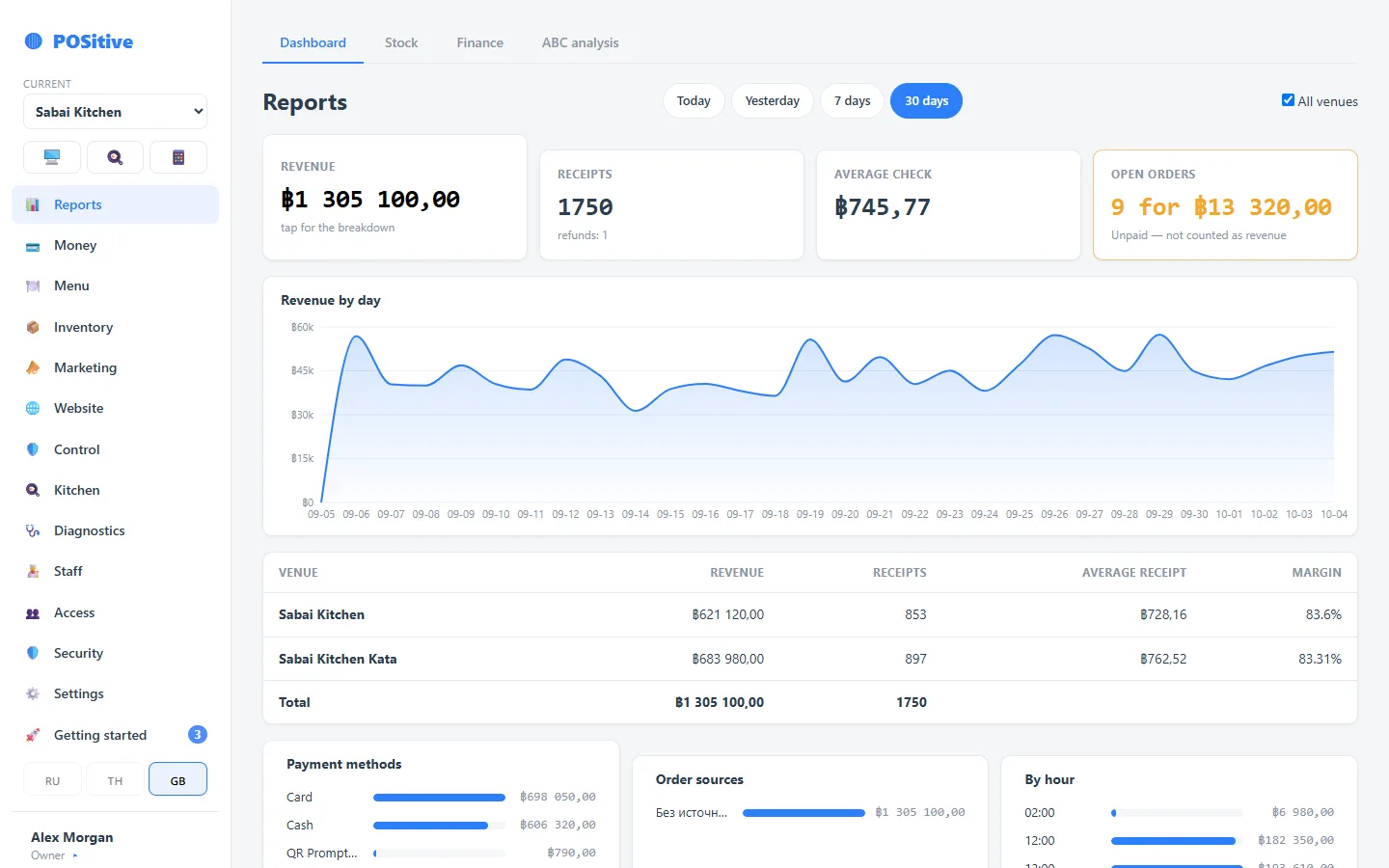
In the back office side menu, in the “current” field. A report for the whole chain — the “All venues” checkbox on the dashboard: locations line up as rows, with the total at the bottom. In “Plus” the venues are shown as blocks on the first screen.
Permissions
Access is granted per venue: the manager of one location does not see the next one. Combined figures for the chain are seen by whoever has the account owner flag.