အကူအညီ / ဆက်တင်များ
ဤစာမျက်နှာကို မဘာသာပြန်ရသေးပါ — အင်္ဂလိပ်စာသားကို ပြထားသည်။
Receipt editor
Logo, free texts, QR code, promo code and dividers: how to build a receipt and see it before printing.
A receipt is built from blocks, with a preview next to it — you see what will come out of the printer before any paper is used.
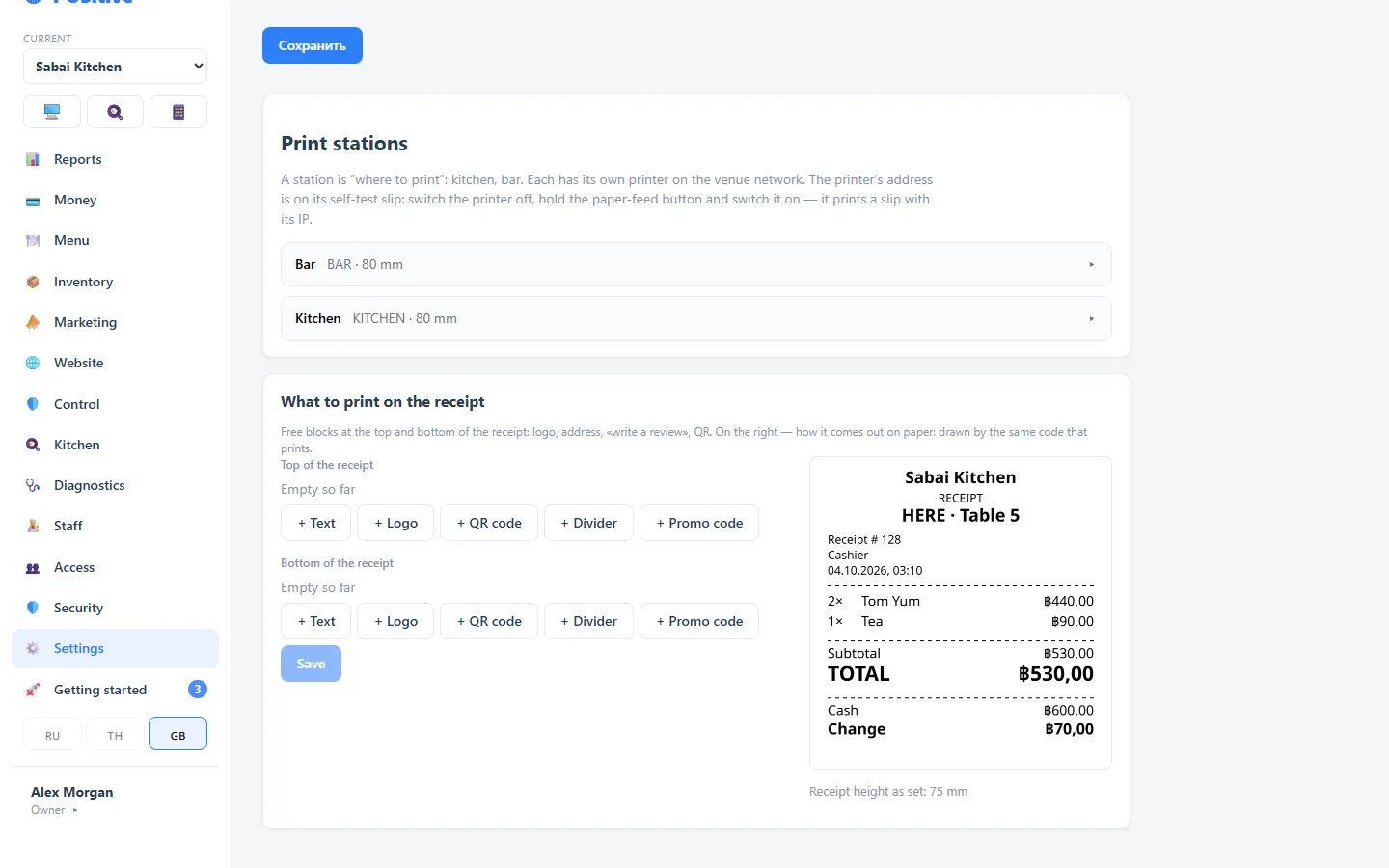
Blocks
| Block | What it is for |
|---|---|
| Logo | An image at the top; the width is adjustable |
| Text | Address, phone, Wi-Fi password, thank-you note |
| QR code | A link to a review, the menu or the order page; can be your own image |
| Divider | A dashed line or an empty line |
| Promo code | A code from a promotion — “leave a review and get a discount” |
Blocks go in the header and the footer of the receipt; the order is set by dragging. For text you can set size, alignment and bold.
Receipt language
The receipt language is set separately from the interface language: the guest gets the receipt in English while the cashier works in Russian.
Comments on the receipt
Item comments (“no onion”) can be shown on the guest receipt or hidden — it is a switch. On the kitchen ticket they are always printed.
Tips
- upload a high-contrast logo that is not too wide: a thermal printer prints more roughly than it looks on screen;
- long footer text makes the receipt longer and uses up paper — two lines are usually enough;
- a QR code for reviews works better when it says next to it why to scan it.