The sale screen
How to enter an order: categories and tiles, search, quantity, comments, sending to the kitchen and autosave.
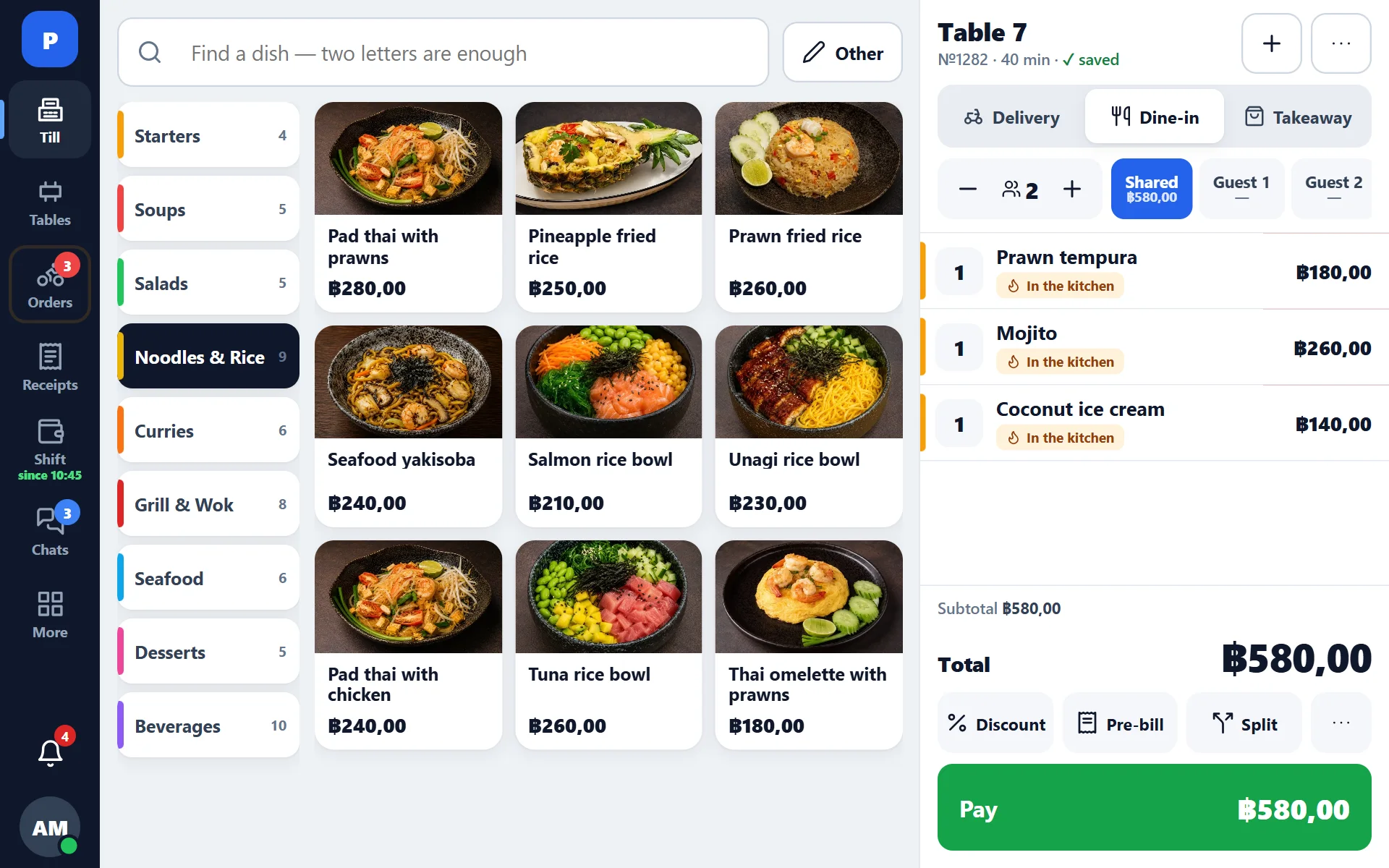
The main screen of the register. On the left — the menu as tiles, on the right — the current order.
How to enter an order
- Choose a category in the top row or find the dish with search.
- Tap a tile — the item is added to the order on the right.
- If the dish has required modifiers, the register asks for the choice straight away.
- Tap a line in the order to change the quantity, add a comment for the cook or delete the item.
- Send the order to the kitchen — tickets go to the printers by station.
Search
Search looks through all categories at once, including nested ones. The register has its own keyboard: the system one covered half the screen, and the search results ended up underneath it.
Quantity and weight
The quantity is changed with the “+” and “−” buttons or by typing a number. For items sold by weight, you enter the weight — the system recalculates the price itself.
Comment for the cook
Any item can have text added: “no onion”, “medium”, “serve later”. The comment is printed on the kitchen ticket. There are quick notes — frequently used phrases, so you do not have to type them.
A comment from a website order is printed for the kitchen but does not appear on the guest’s receipt. If you need it the other way round, there is a separate setting for showing comments on the receipt.
Autosave
There is no “Save” button at the register. You added a dish — it is already in the system. The tablet ran out of battery, the app closed, the waiter was called into the dining room — the order is still there and can be opened from any register in the venue.
Sending to the kitchen and add-ons
“To kitchen” prints tickets by station: sushi to the sushi station, hot dishes to the kitchen. Items added after the first send print on a separate ticket and are marked as added — the cook sees that this is an add-on and not a whole new order.
What to do if a dish is not on the menu
- the item has run out — it is on the stop list, the tile is greyed out;
- the dish does not exist at all — use the “Other” item with a free price; it goes into the receipt and into reports but deducts nothing from stock;
- a dish from the neighbouring venue — see Ordering from a neighbour.
Cancelling an item
Before it is sent to the kitchen, an item can be deleted freely. After sending — only with the permission and a reason: the dish is already being cooked, and that is a direct loss. Such cancellations appear in Control with the name and the amount.