အကူအညီ / ဆက်တင်များ
ဤစာမျက်နှာကို မဘာသာပြန်ရသေးပါ — အင်္ဂလိပ်စာသားကို ပြထားသည်။
Printers and printing
Connecting network printers, assigning stations, 58 and 80 mm width, test print, paper cutting and the cash drawer.
Printers are set up on the tablet itself — printing goes from the register app over the local network.
Connecting
- Connect the printer to the same Wi-Fi network as the tablet.
- Open the printer settings in the register — the system shows the devices it found.
- Pick the printer and set the width: 58 or 80 mm.
- Assign a role: receipts, kitchen, bar.
- Press “Test” — the printer prints a test page.
Stations
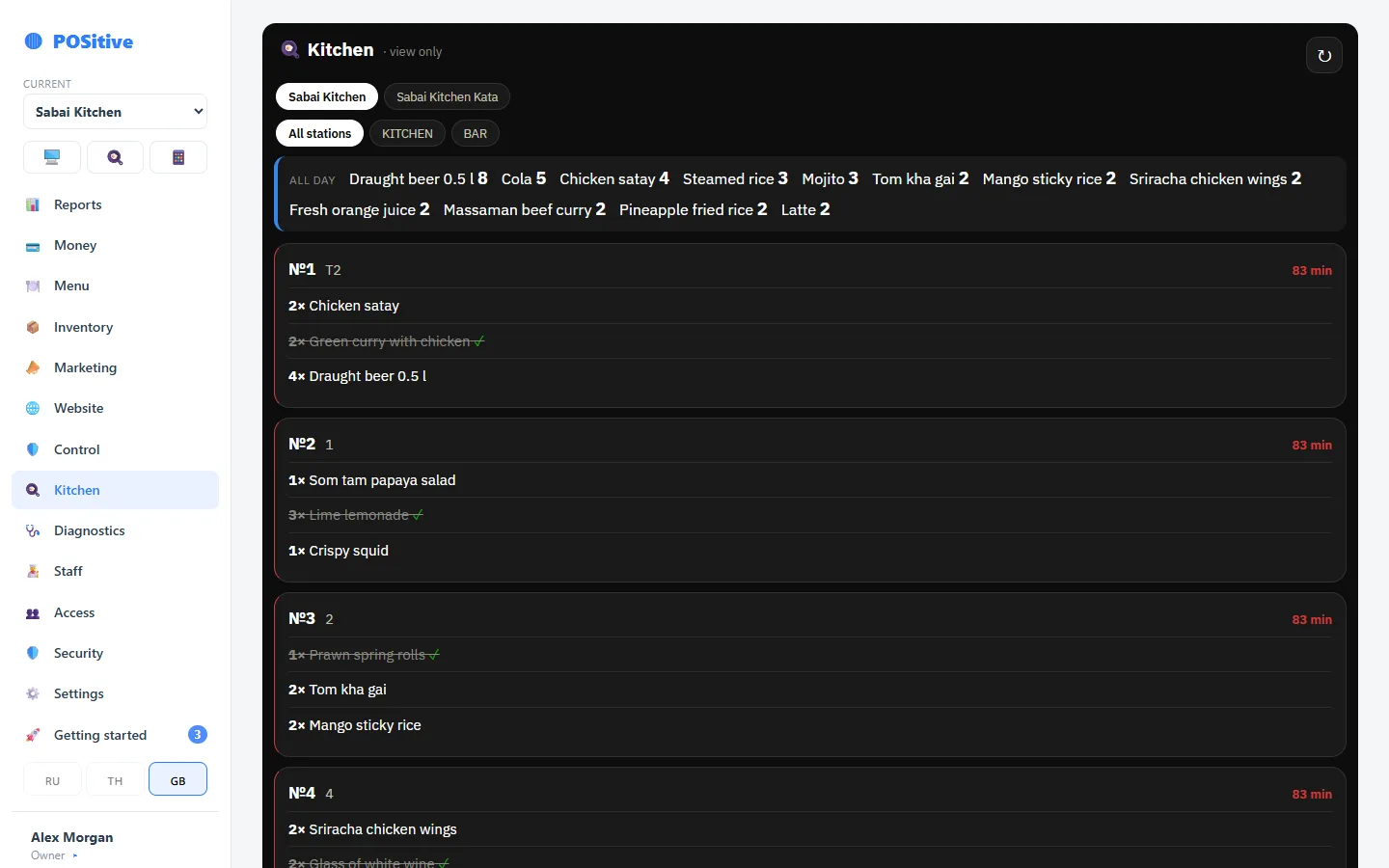
A station links a dish to a printer: sushi prints at the sushi station, hot dishes in the kitchen. The station is set in the dish card.
A dish without a station prints on the main kitchen printer.
Print settings
- number of copies — for example, two kitchen tickets;
- cutting — automatic, if the printer can do it;
- beep — a short beep when a kitchen ticket prints;
- print mode — text or image; image prints any language, text is faster;
- encoding — needed for text mode with Cyrillic and Thai.
Cash drawer
It opens through the receipt printer when paying in cash — no separate connection to the tablet is needed.
If the printer does not print
- Check that the tablet and the printer are on the same network (not “guest Wi-Fi” and “main”).
- Press “Test” in the printer settings — the error tells you whether it is the network or the printer itself.
- Check the paper and the lid: a lid not closed until it clicks looks like “the printer is broken”.
- If the test passes but kitchen tickets do not come out — check the dish’s station.
Kitchen tickets print even with poor internet
The printers are on the local network, and printing does not depend on the connection to the server. If the internet drops, the kitchen keeps getting orders.