Installing “Plus” on a phone
The owner's app: how to put the icon on your phone, sign in, and what to do if the figures do not update.
“Plus” is the management app: revenue, receipts, shifts, staff, chats and website orders. It opens in the phone's browser and is added as an icon to the home screen.
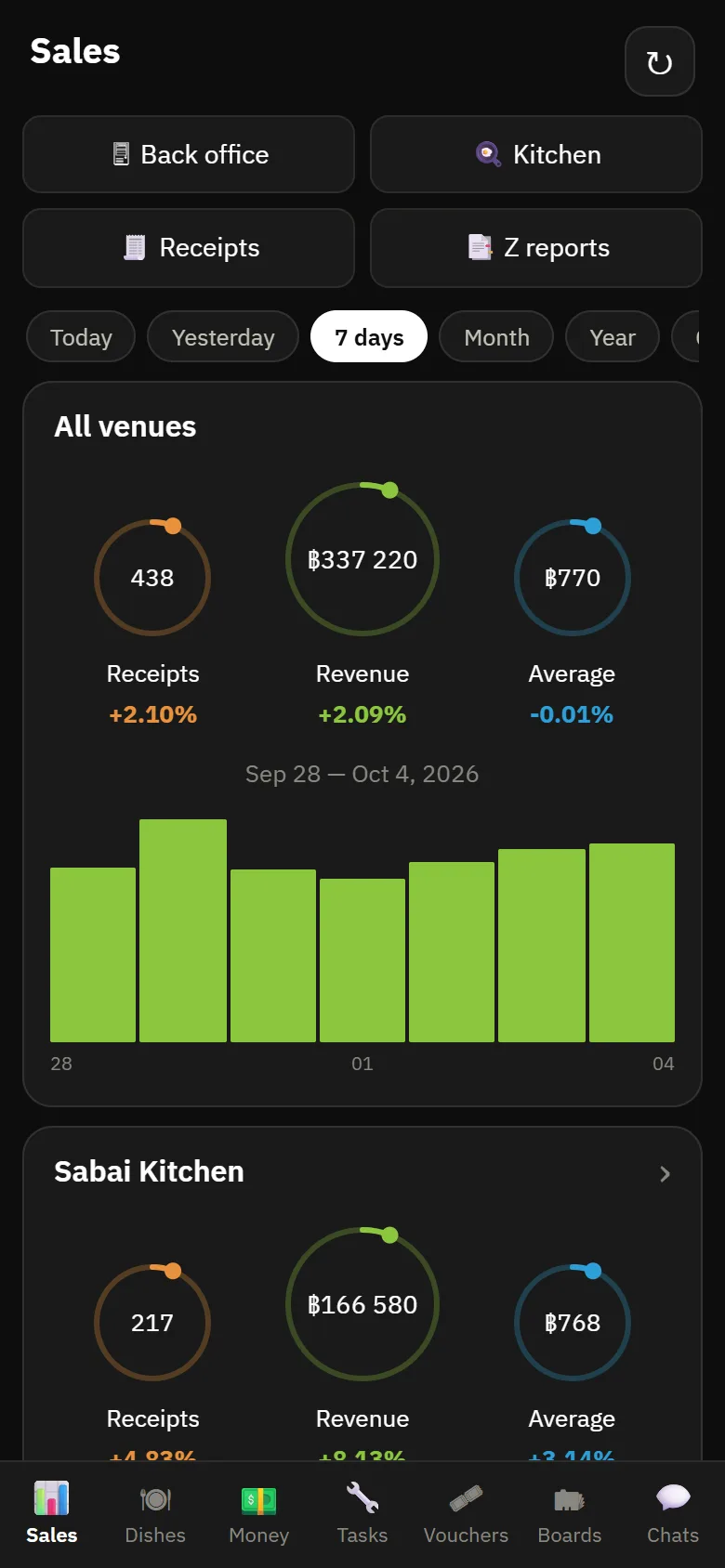
How to install
- Open the back office in your phone's browser and press 📱 “The Plus app” at the top of the side menu — or add
/pulseto the back office address. - Sign in with your back office login and password.
- Add the page to the home screen: in Safari — “Share → Add to Home Screen”, in Chrome — “Menu → Add to Home screen”.
- The icon appears next to your regular apps and opens “Plus” directly, bypassing the desktop back office.
There is also a separate app for Android — the link and QR code are on the Download page. Its advantage is that it opens instantly and does not lose the sign-in. It is deliberately not on Google Play — the same page explains why.
What is needed for the figures to show
- the person must have the “Plus” permission and access to the right venues;
- the account owner sees all locations at once, a manager only their own;
- combined figures for the whole chain require the account owner flag — this is not the same as the “Owner” role inside one venue.
If the screen is empty or shows one venue instead of three, it is a question of permissions, not of the app. See Roles and permissions.
If the figures seem old
Pull the screen down — the data is reloaded. “Plus” shows what has already been recorded on the server: a receipt appears there at the moment it is closed, not while the order is being entered.