The kitchen display
The dish queue on the cook’s tablet or a TV: what is on screen, how to set it up in the kitchen, the yellow bar and why paper stays.
The kitchen display shows what to cook right now. It is a separate module: switched on if you want it, and it does not replace paper tickets.
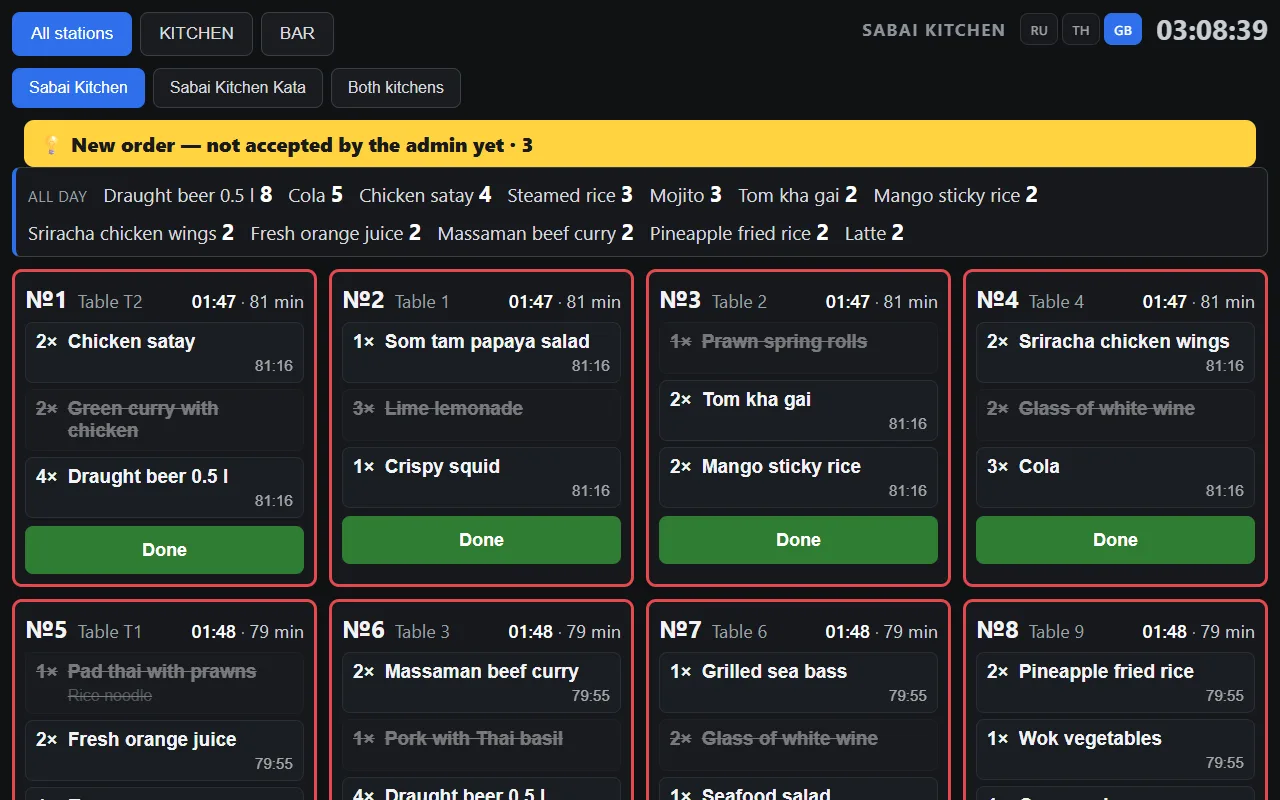
What is on screen
- order cards — one per order, with the number, table, time and items;
- the “All day” summary at the top — identical items from different orders are gathered into one line so they can be made as a batch;
- ageing — the longer an order waits, the more noticeable its card;
- ready items are crossed out — you can see what is left on the order;
- add-ons are marked separately — on paper they are easy to miss;
- station filter — sushi sees its own, the hot line its own; the choice is remembered;
- names in the kitchen’s language — usually English or Thai, separate from the cashier’s language.
The cook sees only what has been sent to the kitchen. While the waiter is still entering the order, the kitchen does not see it — otherwise they would cook what the guest may still change their mind about.
How the cook works
- The order appears on the screen as soon as the waiter presses “To kitchen”.
- The cook looks at the summary: eight identical rolls — one line, one batch.
- A ready item is marked — it is crossed out on the card.
- When everything is ready, the card is closed with the “Done” button.
There is deliberately no separate “order ready” button without items: an order is ready when all of its sent lines are ready. A second source of truth about the same fact sooner or later diverges from the first.
The yellow bar “New order — not accepted by the admin yet”
If an order has come from the website and is waiting unaccepted, a yellow bar appears at the top of the screen and the signal lamp starts flashing.
The bar is there so the cook understands why the lamp is flashing: it is not their task but a signal to the manager. Without an explanation the flashing is either ignored or people start cooking something that has not been confirmed yet.
How to set it up in the kitchen
The display opens by its own link, separate from the register, so any device with a browser will do: a tablet at the pass, an old laptop, a TV.
You need:
- the “Kitchen display” module switched on in your subscription;
- an employee with the “Kitchen display” permission — the device signs in as them.
- Open the kitchen display link on the tablet itself — the back office gives it under Settings → Tablet app.
- Sign in as an employee with the “Kitchen display” permission.
- Browser menu (⋮) → “Install app” or “Add to home screen”. A “Kitchen” icon appears.
- Launch it from that icon: the display opens full screen and shows only the queue — there is no register there.
Do not sign in on the kitchen tablet as a manager. An employee whose only permission is “Kitchen display” is both safer and more honest in the log: you can see that it was the kitchen that marked the item ready.
A TV in the kitchen
Two ways:
- directly, if the TV has a browser: open the same link and leave it;
- by casting from the tablet — with Android’s built-in casting or an HDMI cable. This is more convenient: readiness is marked on the tablet, and the TV shows the same thing in large print.
For a TV the font size matters more than the number of cards: the screen is read from three metres away, on the move.
View-only mode
The same screen opens in the back office and in Plus, but view-only: the manager and the owner see the kitchen’s load without going into the kitchen or pressing anything.
Paper stays
Tickets print independently of the display. This is a deliberate decision: a tablet can freeze, lose the network or run out of battery, and a kitchen left without paper stops completely. The display adds to printing, it does not replace it.