Invoice mailbox: forwarding supplier emails
How to forward emails from Makro and other suppliers from Gmail to POSitive — step by step, with pictures.
Every POSitive account has its own address for supplier emails. Emails you forward to it appear in the back office under Inventory → Mail. They do not post anything by themselves: a person still receives the goods.
1. Copy your address
Open the back office → Inventory → Mail and click Copy. The address looks like [email protected].
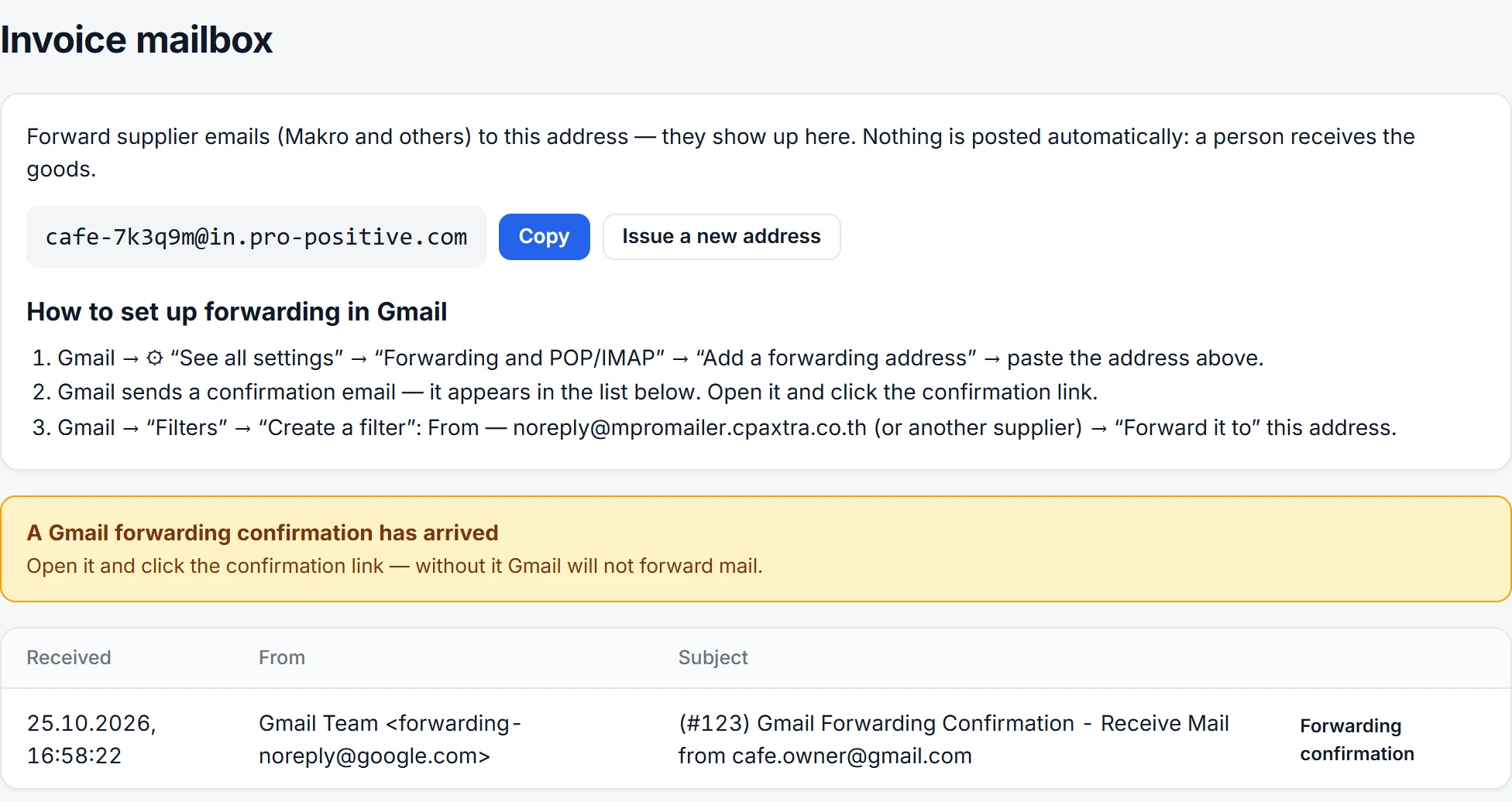
Do not publish it or give it to suppliers instead of your own email. If it ends up in the wrong place, click Issue a new address: the old one stops accepting mail at once.
2. Add the forwarding address in Gmail
- Gmail → ⚙ → See all settings.
- The Forwarding and POP/IMAP tab.
- Add a forwarding address → paste the address → Next → Proceed → OK.

Gmail sends a confirmation email and waits.

3. Confirm the address in POSitive
Within a minute a yellow banner “A Gmail forwarding confirmation has arrived” lights up at the top of Inventory → Mail. Open the email and click the link under “Links in the email” — Gmail accepts the address.
4. Do not forward all your mail
Go back to the Forwarding and POP/IMAP tab in Gmail and refresh the page. Keep Disable forwarding selected.

Bookings, bank, personal mail. Only supplier emails should be forwarded — that is what the filter is for.
5. A “from supplier → forward” filter
- Click the search options icon at the right of the Gmail search bar.
- In From, enter the supplier address. For Makro:
[email protected]. - Click Create filter.
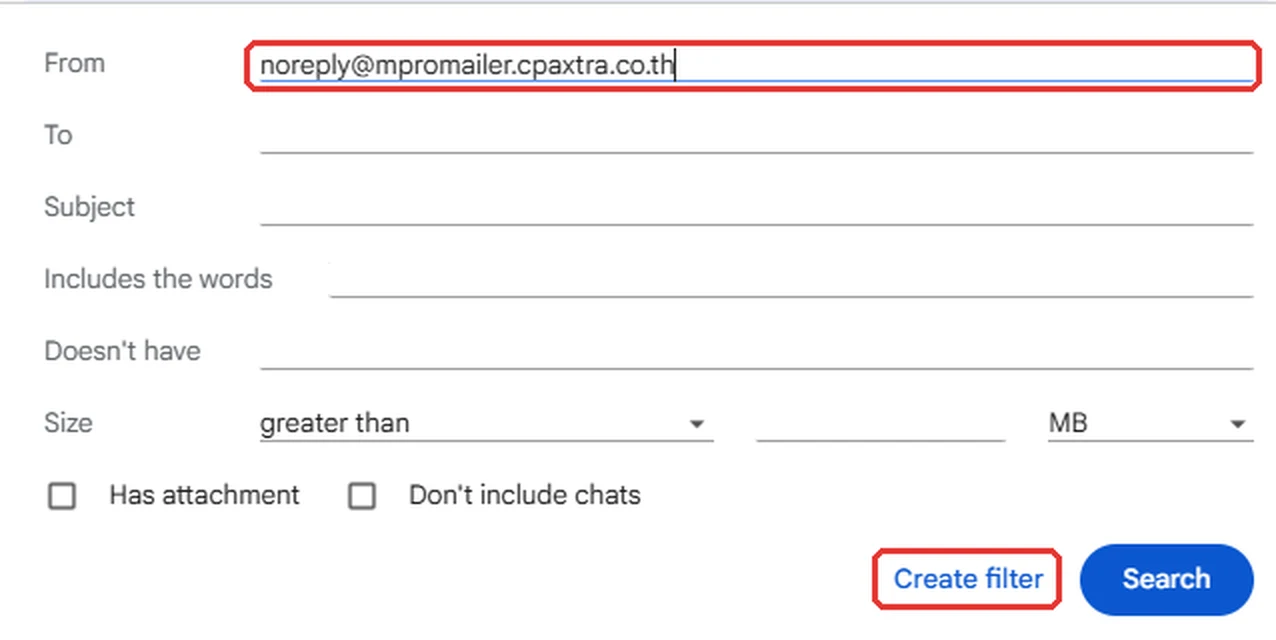
- Tick Forward it to and choose the POSitive address.
- Click Create filter again.
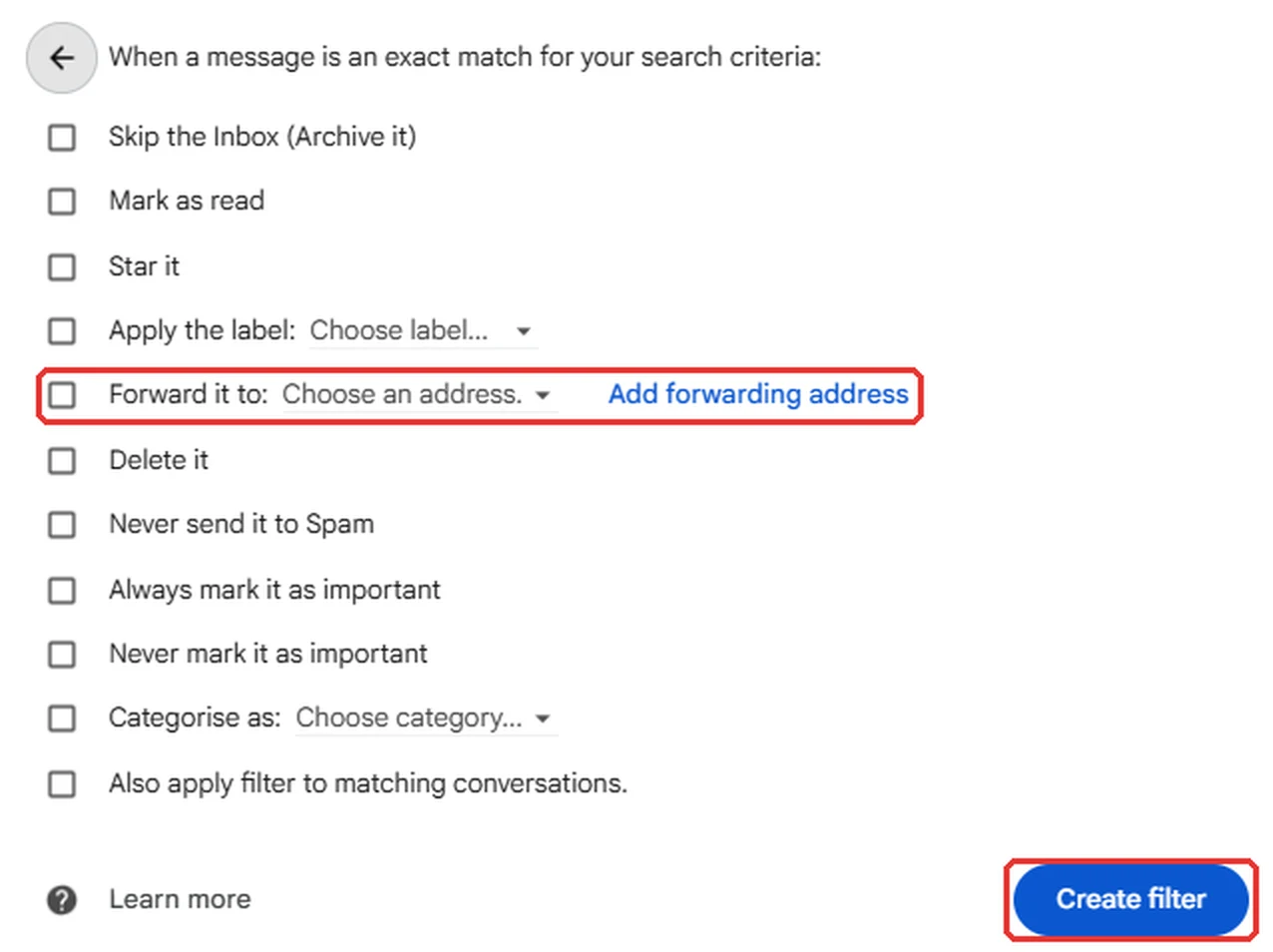
The filter forwards new emails only. Forward older supplier emails by hand: open the email → Forward → the POSitive address.
Other suppliers
Repeat step 5 for every supplier that sends invoices or receipts by email. Emails with an attachment (a PDF or a photo of the invoice) also appear in Inventory → Mail.
If emails do not arrive
- Check that the address in the filter matches the one in Inventory → Mail. After Issue a new address the old one stops working — update it in Gmail.
- No confirmation email: in Gmail, click Re-send email next to the address.
- Message support from the back office — we can see whether the email reached POSitive.